

conninator2000
-
Posts
10 -
Joined
Content Type
Profiles
Forums
Blogs
News
Store
Everything posted by conninator2000
-
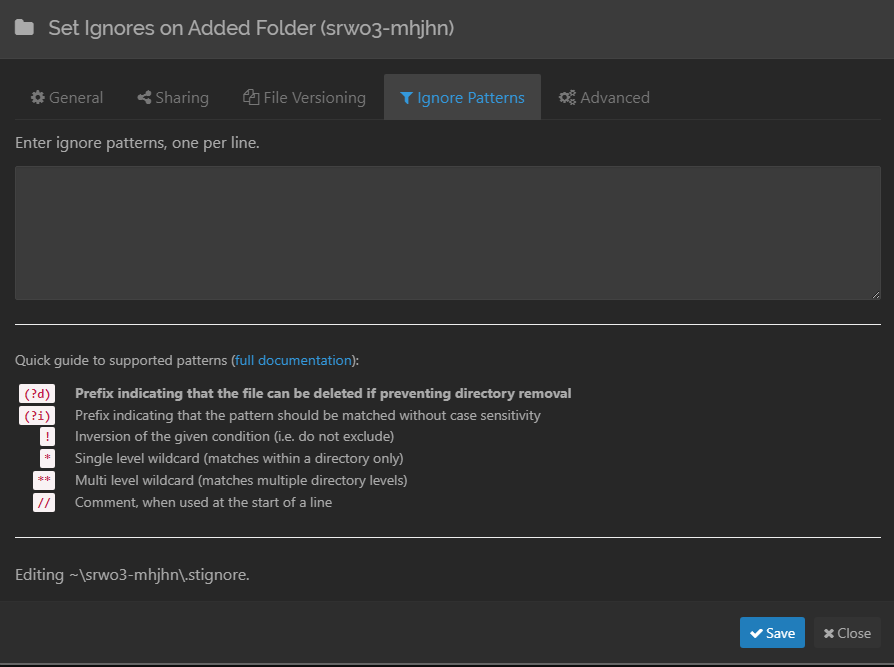
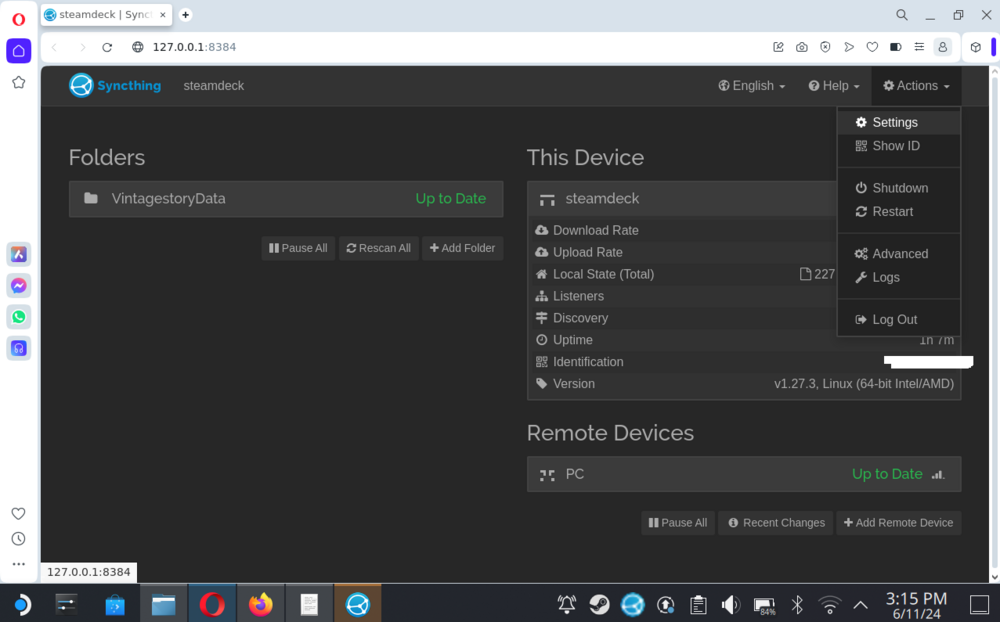
Hmm ill need some more information on it but if its showing green, then thats at least a good initial sign. One big quirk is that both the PC and deck syncthing have to be running at the same time, so on deck you want it running through decky if you dont want to have to load desktop mode up all the time. So in case they aren't running at the same time or you havent given it a good 5-10 minutes to let it sync on its own and update the other, then those could be quirks as well. A really easy way to test this, is to just make a folder or temporary file on the PC end, wait for it to sync and then check the steam deck desktop to make sure the file showed up on the deck. After that, check that you copied the filter correctly since it limits the types of files and what folders to explicitly ignore. If you checked all of that and still didn't find the culprit, take some screenshots of the syncthing connection info from both the steam deck and PC side (and dont forget to censor stuff like your IP address). Its mostly to check when they are updating/syncing last. The system works when it works but sometimes I find if i have to head out and close down my PC version it can take a little while for syncthing to do its regular scans, a bit more time for the deck to receive it and download it, and then for it to show up. So its not always pick up and play friendly, but as long as you have it running on both and get a drink or something between switching then its rarely an issue you run into. The absolute worst case I had was the save didn't transfer and then there was a conflict (any files that have both changed since the last update get put in and have 'syncthing-conflict-[date]' added to them so you can look at which you want to keep and which you want to remove). Hope that helps @cbhu235
-
Just took a quick look and its the part that suggests adding this launch argument --env=mesa_glthread=false Also @mard in case you missed the guide i followed up with that walks through syncing a pc and deck version save. Might be worth adding a link to it on your guide for those that want to suffer a bit setting things up. I figure its probably not worth posting as its own guide since its dependent on this install/platform.
-
Take a peek at my comment up above (not my last one but the one before that) since i ran into the same issue. Tldr: i think its following the step to add a launch param to the game on the deck. Its in the guide as an optional thing and if i remember correctly it disables the graphics threading or something like that
-
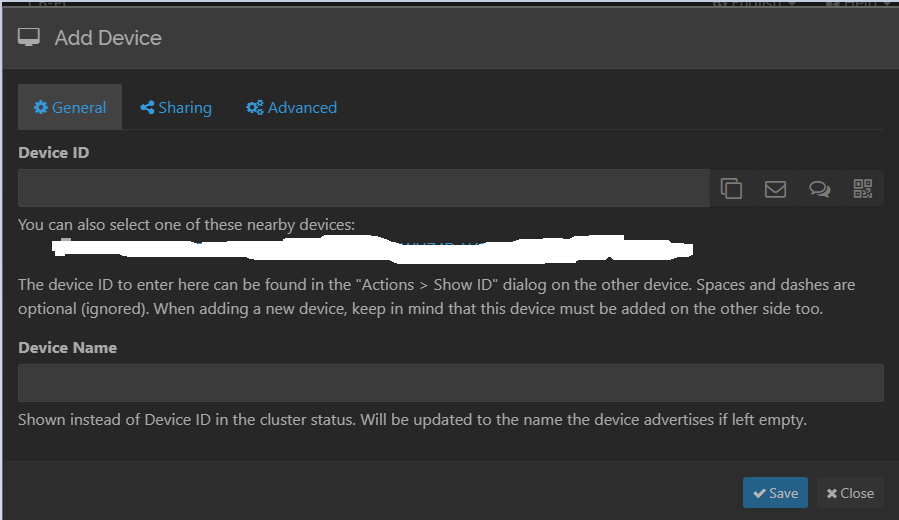
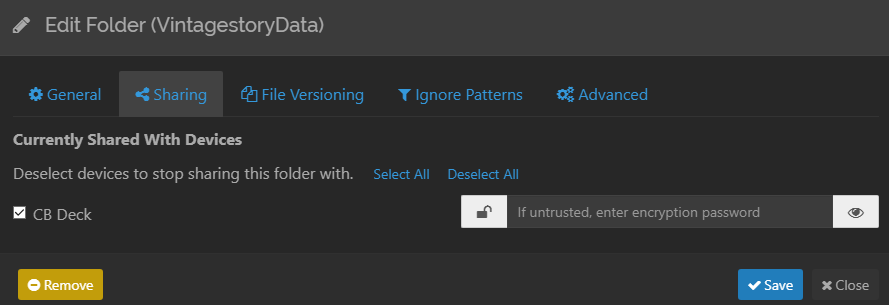
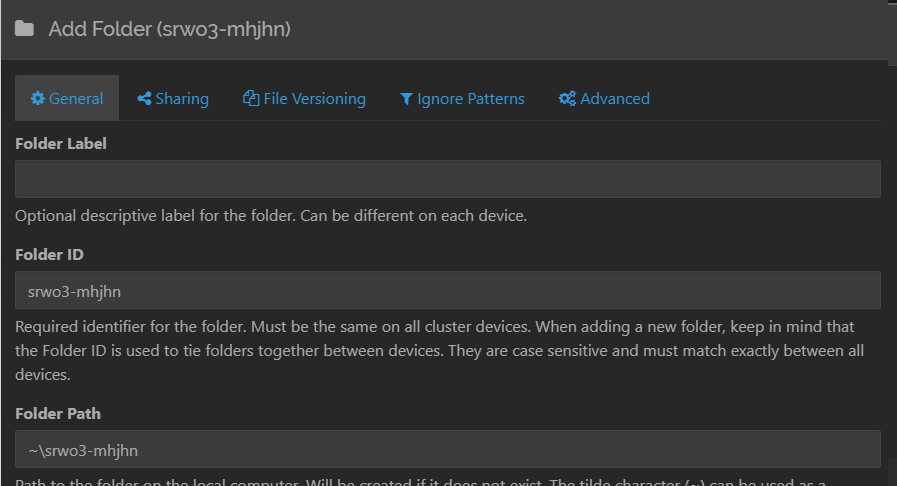
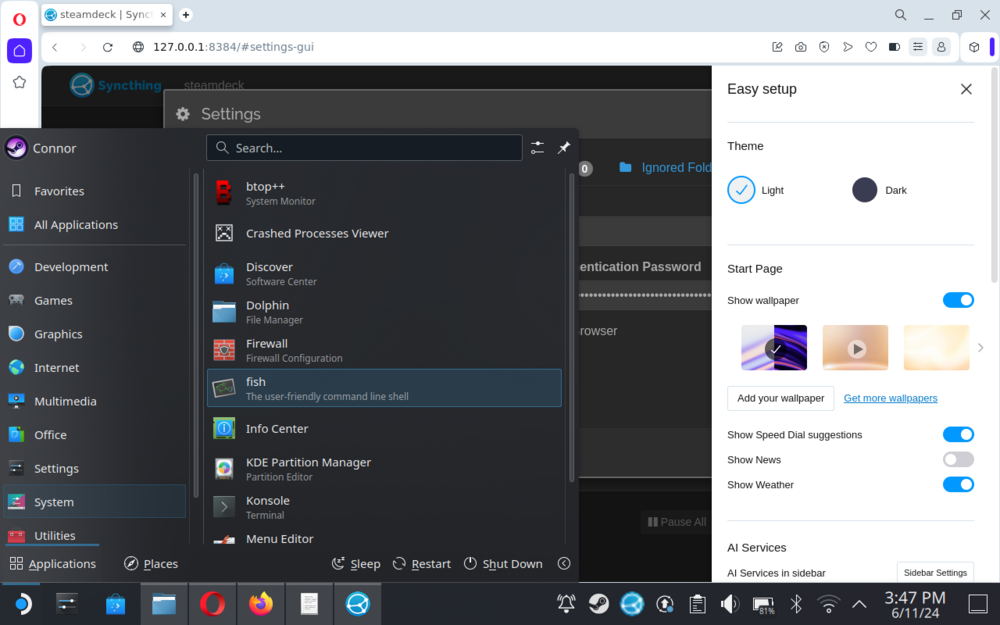
Ok so good news, I managed to get it working with syncthing to sync a folder - though it was a bit of a hassle as all networking things are. Ill format it below in case you either want to link to this message or to just add it to the guide since I figure it might help a fair amount of users that are coming from PC. So before we get into the nitty gritty, lets first talk about whats to be expected and what some alternatives might be. This can be a bit of a setup and things can go wrong that will take a bit of extra time if you aren't careful. I doubt anything will have any huge issues, the worst I ran into was having to reinstall and reconfigure some things or do a fair bit of googling and forum crawling to find a fix. Expectations In case this doesn't really cover what you need, there are some alternatives Host a dedicated server - this fixes practically all of those issues but requires a computer or device to always be hosting this It can be a bit difficult for users to do since it can sometimes get a bit technical, need IP addresses, etc Websites do exist that you can pay to host games like this, but they will need a bit of extra setup if you want to use mods Use some manual file transferring There are some platforms that could help with this like google drive, github, etc. Anywhere that can host a file can cover a use case Problem is that whenever you finish playing, you HAVE to remember to move the files over to the cloud. The nice part is that you can pull the save down whenever and put it up when you are done 99% of this is done by using syncthing though, so doing this method may be a easy fallback but it can be a lot of extra legwork for something computers can do with minimal issue But this use case is probably more useful if you have extremely unreliable access to the internet With that out of the way, lets get down to business. Ill give a bit of a technical overview here - but please know that its just technical mumbo jumbo. I'll do my best to walk through this with a good bit of detail since i already spent one sleepless night figuring this out so it wouldn't be fair to take up your entire night now would it? Basically we are going to use syncthing to create a folder on our PC that we are going to share with out deck. It shares through syncthing-gtk and will go through syncthing (a plugin for decky loader). At the end of the day that means you can leave your pc running sync thing while your deck can have an easy switch to toggle it on/off in gaming mode! So you can do a bit of work here to avoid having to touch desktop mode as much. Now going forward ill use a style in the headers. If it starts with SD we will be using the steam deck for this part. If it starts with PC we will be using your desktop/laptop or really, any other device that can handle syncthing. Its actually a pretty portable piece of hardware, but since I run windows 10, ill keep most of my work down to that platform. Other platforms seem to work very similar especially when using the web UI. SD-Initial Setup SD-Configuring Syncthing-GTK PC-Setup SD-Establishing the connection PC-Sharing the Folder and checking that it works SD-And Voila! Kinda... SD-But you told me this would be seamless That took you a night of suffering? But you promised me more! Where was that cool idea to get around needing both running? So long and thanks for all the fish I hope that was able to help you, if you have any issues feel free to reach out and ask. This can be pretty daunting for people especially those that aren't comfortable with computer mumbo jumbo. I hope you were able to get it working and enjoy the vintage story!
-
Good catch on the desktop remapping to arrow keys. I guess that means you could rebind it to run there without many issues - though the decks gaming mode makes that a bit redudnant. Its pretty interesting what you can do with it since the steamOS/linux distro just basically makes the steam deck a switch sized laptop. That being said i noticed with ~40 ish mods on desktop i would run into some stutters with 32gb of ram even since the .net 7 update. But i think most of that was just due to an HDD that has seen a few years of work. The mods might have not even been the culprit there - i did love a good bit of chiseling which I heard can have a bit of a hit on RAM if there is a lot in one location. But all of that was on a pre .Net 7 version too... But either way, good job on the guide and being willing to keep it up to date! Very useful information. Now if only there was some kind of way to automatically sync saves between pc and deck- i suppose something like github would do the trick :)
-
Thats a fair point, it seems in all my years doing tech related stuff, I forgot the first step of turning it off and turning it back on again. Restarted the deck just down and loaded up the game in the gaming mode and the control scheme works fine + mouse control is all good. Might be worth putting in that after all the setup is done, it is worth giving it a restart. Oddly enough it still doesnt map the left stick correctly to moving (same issue i ran into) on desktop mode, but gaming mode looks like a charm! Which means its time to get adding some mods Did you ever notice any issues with performance? On my pc I generally found mods being a hog with RAM, though I did have it installed on a HDD for way longer than I should have. After swapping it to SSD a few days ago i noticed the performance picked up a bit or at least was much more consistent with frame rates. Again, thanks for your guide! Really helpful and honestly was the tipping factor to get a deck when i saw it - the switch has always been a bit ehh and vintage story has been a consistent game to return to when I need a break from the steam library.
-
Hey! Just picked up a steam deck and this is basically the first thing I am putting on. For the most part its a pretty painless install, your guide does a great job covering the bases. Only ran into two issues big issues so far. So issue #1 was when I was running in desktop mode. Initially froze the mouse and the steam keyboard could appear but it would basically be invisible. You can technically interact with it using the buttons but since you cant see it, its a bit of a headache to type anything. Luckily the mouse was fixed by your mention of the env gitthread launch property, and there was a steam guide that gave a quick answer to making the keyboard appear which i will link here Basically edit a setting and bam the keyboard appears without any issue. So two issues down and I can log in, set the settings, and launch the game to give it a test. Game loads up fine, all of the controls seem to work minus the left stick to move using the controller configuration. So I figure that its probably just a steam deck desktop mode oddity, you recommended using big picture mode anyways so time to give that a shot. I boot up big picture mode, and since it has all the same launch config and that keyboard fix I did, it should be right as roses and let me get down to the root of this issue (and without having to be in hell every time i have to press the x key). Launch the game and it logs in but I can't bring up the keyboard overlay and also can't interact with it at all. The controller layout is set just like before but no inputs seem to do anything while the game putters on in the title screen. Any ideas on fixes or things to look into? It might be worth linking that guide for those that want to be able to use desktop mode to at least get into the title screen to change settings. Also it might be worth adding the selecting the layouts tab to get the button to show hidden layouts to the guide proper - i didnt have any issues until double checking it in big picture mode and its a little more picky there about what you have selected to show hidden layouts than it was in desktop mode.