


Drahkar
-
Posts
24 -
Joined
-
Last visited
Content Type
Profiles
Forums
Blogs
News
Store
Posts posted by Drahkar
-
-
Vintage Story 1.22.1. The
latesttag will also pick up 1.22.1 from now on.-
Docker Hub:
ralnoc/vintagestory-
ralnoc/vintagestory:1.22.1
-
-
GitHub Container Registry:
ghcr.io/darkmatterproductions/vintagestory-
ghcr.io/darkmatterproductions/vintagestory:1.22.1
-
IMPORTANT!! Always remember to backup your data files, before you do any kind of upgrade. Not all Mods are compatible with 1.22.1 yet.
CRITICALLY IMPORTANT!! Some Mods are not backwards compatible with worlds from previous versions!! Make sure to read ALL the information for your Mods, before you upgrade!! -
Docker Hub:
-
He were go! Vintage Story 1.22.0, fresh off the presses! The
latesttag will also pick up 1.22.0 from now on.-
Docker Hub:
ralnoc/vintagestory-
ralnoc/vintagestory:1.22.0
-
-
GitHub Container Registry:
ghcr.io/darkmatterproductions/vintagestory-
ghcr.io/darkmatterproductions/vintagestory:1.22.0
-
IMPORTANT!! Always remember to backup your data files, before you do any kind of upgrade. Not all Mods are compatible with 1.22.0 yet.
-
Docker Hub:
-
It seems 1.22.0 has dropped as stable! I will be getting the image built and deployed, tonight!
-
On 4/15/2026 at 5:11 PM, Jarfi said:
I'm getting major errors with this dockerfile and permissions on the data folder which result in messages about 'invalid user password'
data folder defaults to uid/gid 1100
The container runs using a user assigned the UID:GID of 1100:1100. As long as you have the directory you are mounting owned by that, and given proper write permissions, you should be set. Running : chmod -R 1100:1100 /path/to/data/directory will set ownership correctly.
Can you detail how you are running it? It might help with offering suggestions.
-
With the ModDB error verified to have been fixed, I've published 1.22.0-rc.5. I hope everyone finds it interesting. I plan to dig into it more, as well.
I will be offline until April 7th, so if the next RC drops before then, I'll take care of it, as soon as I get back.
-
Docker Hub:
ralnoc/vintagestory-
ralnoc/vintagestory:1.21.6 -
ralnoc/vintagestory:1.22.0-rc.5
-
-
GitHub Container Registry:
ghcr.io/darkmatterproductions/vintagestory-
ghcr.io/darkmatterproductions/vintagestory:1.21.6 -
ghcr.io/darkmatterproductions/vintagestory:1.22.0-rc.5
-
-
Docker Hub:
-
On 3/7/2026 at 12:52 PM, Shijikori said:
@Drahkar Another minor update, though I'll be done for a while following that one. Version 2.0.2 of Vintage RCon improves logging and leaves more verbose traces for administrators. This can be very useful to know what the rcon connection was used for in the logs. The full command is now part of the logs (including arguments) as well as the address of the client which sent it.
Nothing changed in terms of logic and processing, so it shouldn't cause any issues if version 2.0.1 didn't give you any problems.
@Shijikori Perfect. I'll make sure future builds leverage 2.0.2. I've already confirmed everything in place works with the new version, so it looks good.
For anyone waiting on 1.22.0-rc.*, I'm sourcing your opinion.
Currently, I'm seeing a pretty consistent failure when you have more than one Mod loaded on the dedicated server. The client gets a bad request error when trying to communicate with ModDB. I've been holding off making the build, due to that error.
Would you all like me to build it anyway?
NOTE: ALWAYS backup your saves before doing any upgrade. I've seen a few posts of people being burned because of that.-
 2
2
-
-
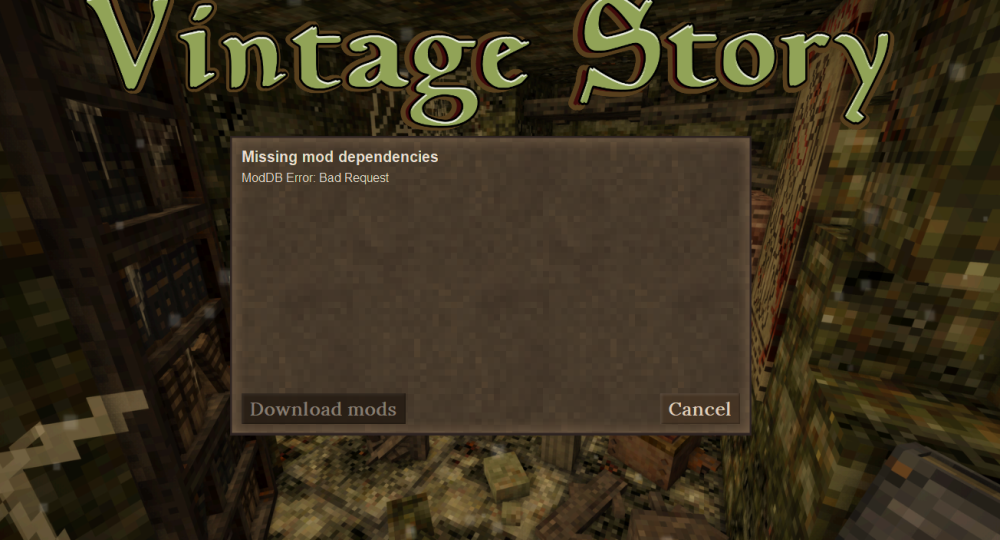
Has anyone been able to solve the "Bad Request" error, when connecting to Dedicated Servers that have more than one mod installed? Everything works fine with one Mod, but as soon as you have more, this is what you see.
-
1
-
-
@Shijikori That is a solid recommendation. The standard configuration for the server has RCON only accessible through the WebUI, but calling it out is definitely a valid point.
I should also look into updating the process for handling the WebUI to also support using Let's Encrypt, so it will just natively support SSL, and then give them a way to deploy it with their own certs, if that is what is preferred. I've opened Github Issue #65 for implementing a solution that will allow for simple automated support, if they are using anything more than localhost access.
-
 1
1
-
-
2 hours ago, Shijikori said:
Hey! Just letting you know I updated Vintage RCON to fix an issue with packet handling. Please make sure that your web console is compatible with the classic handling that was reimplemented in the new version!
I overlooked this when I checked the changes submitted by Taehan.
Every command packet should now receive only one packet of response. Please ensure that your console sends a SERVERDATA_RESPONSE_VALUE (packet type 0) after receiving the first response to a command. The server should respond with an empty serverdata response packet if there are no more chunks left to the response.
Feel free to communicate with me through Discord (@shijikori) if you need technical details
Refer to Valve's documentation to validate your rcon web console's client behaviour : https://developer.valvesoftware.com/wiki/Source_RCON_Protocol
@Shijikori Thanks for the heads up! I'll update the version and test. I actually suspect that may have been the cause of a id count error I was running into that ultimately had me change to an async call through the python rcon library. I'll let you know!
-
5 hours ago, Varusal said:
Well actually this was it!
I removed the config restarted the server and it worked!
Thank you very much
Wonderful! Glad I could help!
-
1
-
-
@Varusal -
I'm glad it helps. It was a huge pain for me when I first started with things, not having a fast way to start with a server. Glad I can play a part to help other with this.
In regards to the situation you are working with. I need to confirm one thing. When you go to start the sever back up, does /opt/vintagestory still have the original contents from when you first started and were having the errors. The reason I ask is that if it does, then you are having a problem because the configuration already has the settings in place. If the serverconfig.json file already exists, then it doesn't change anything in place. I do this, to ensure that your configuration doesn't get inadvertently overwritten.
You can do a one time run with the environment variable FORCE_REGENERATE_CONFIG set to true which will force it to generate the configuration again, using your updated settings.
-
1
-
-
18 hours ago, Fat_Lizardman said:
If you checkout my CasaOS appstore i actually have all test versions for 1.22 available as versions so to download 1.22.0-pre.3 you just put that in as the version of the container you want https://github.com/JoshEvans-Weber/casaos-store/archive/refs/heads/main.zip
I appreciate your interest and what you've started. Anything that makes these games easier for people is a really good thing, in my opinion.
I'll plan to continue working with developing this image and pipeline. It was originally primarily for myself, but with so many people who had been struggling with the server and asking about a Docker container, I decided to make it available for everyone and source ideas on improvements from those using it.
As you continue working on those implementation, I would suggest creating a thread specifically for it. "Vintage Story Dedicated Server CasaOS Appstore" for example. Primarily because I won't do support on tooling and installs developed by someone else.
Have a good one!
-
4 hours ago, Josh Oxborrow said:
nano serverconfig.jsonnear the bottom you can change the whitelist mode to 1
to get out of Nano use ctrl+x then y to say yes you want to save and then enter
then exit to docker and restart the server and it should work.I made a lot of mistakes but one that was causing the biggest headache was I also tried to add my name to the whitelist but didn't use the right syntax so the server was rebooting over and over again.
The newest version of the image that was just released resolves this issue. You can just set VS_CFG_ENFORCE_WHITELIST to true and it will take care of it. I also updated the Server Config wiki entry, to clarify one does nothing and the other actually sets it.
Sorry you were hit by this gap of information as well. It was definitely a headache.
-
 1
1
-
-
12 hours ago, Josh Oxborrow said:
This is the error I get in game but I have changed the whitelistmode to 1 and when I rerun server/server.sh status I get
root@c4ee3890c924:/vintagestory# server/server.sh status
Data path is /vintagestory/data
VintagestoryServer.dll is not running.
@Josh Oxborrow - This looks like you are trying to start up the server manually inside of the container? I'm asking because the questions about commands are all about actions that are managed entirely within the container and don't require user interaction.
Can you clarify the steps you are following for getting things running?
-
The new image and latest tag have been published. It has some improvements and features added to it. The main post has been updated with details, but a summary of changes are below.
Summary of Changes (v0.0.28 → v0.0.30)
Feature Changes- Automated Mod Installation
- Automatic installation and configuration of Vintage-RCON mod
- Enabled via VS_RCON_ENABLED environment variable (Default: true)
- Built-in RCon Web Client for remote console access
- Single-user authentication support
- OAuth integration (Google, GitHub, Facebook, Apple)
- Fixed whitelist enforcement feature
- Replaced VS_CFG_ONLY_WHITELISTED with VS_CFG_ENFORCE_WHITELIST
New Environment Variables
RCon Configuration:- VS_INSTALL_RCON - Enable/disable RCon mod installation
- VS_RCON_PASSWORD - RCon authentication password
- VS_RCON_WEB_PORT - Web client port (default: 8080)
- VS_RCON_WEB_SECRET - JWT secret key for web client
- VS_RCON_WEB_USERNAME - Traditional login username
- VS_RCON_WEB_PASSWORD - Traditional login password
OAuth Configuration:
- VS_RCON_WEB_OAUTH_ENABLED - Enable OAuth authentication
- VS_RCON_WEB_OAUTH_EMAILS - Comma-separated authorized email list
- VS_RCON_WEB_OAUTH_GOOGLE_* - Google OAuth credentials
- VS_RCON_WEB_OAUTH_FACEBOOK_* - Facebook OAuth credentials
- VS_RCON_WEB_OAUTH_GITHUB_* - GitHub OAuth credentials
- VS_RCON_WEB_OAUTH_APPLE_* - Apple OAuth credentials
Updated Variables:
- VS_CFG_ENFORCE_WHITELIST - Replaces VS_CFG_ONLY_WHITELISTED
-
I'm in the process of final testing for the new release. Once that is done, I'll be updating the documentation to make sure it reflects the current state. Hope everyone is having a good weekend.
-
On 2/7/2026 at 8:44 AM, Drahkar said:
@mohmaniac, Thank you for the note. Also @Fat_Lizardman, thank you as well. I'm going to look into making the adjustments to address the whitelisting (I ran into that as well, but forgot about it since I just manually modified the config file after provisioning.)
I'll look into the RCon mod, and what adjustments need to happen for fixing whitelisting management. If someone was willing to open Github Issues for each item on the Repository, that would be really helpful!
I'm going to get 1.22.0-pre.1 available for those who want to test against it as well.
I'm almost done with the new image. Taking the advice, I have incorporated RCon, but I've also added a number of other features to make life running the server less painful, which includes a packaged RCon Web Client. I hope to have everything finished, tested and ready this week.
-
@mohmaniac, Thank you for the note. Also @Fat_Lizardman, thank you as well. I'm going to look into making the adjustments to address the whitelisting (I ran into that as well, but forgot about it since I just manually modified the config file after provisioning.)
I'll look into the RCon mod, and what adjustments need to happen for fixing whitelisting management. If someone was willing to open Github Issues for each item on the Repository, that would be really helpful!
I'm going to get 1.22.0-pre.1 available for those who want to test against it as well.
-
Just came through to this thread, and wanted to follow up on the comment about helping with the code and keeping things moving forward. I'm already working on other mods for my group, and I consider this mod one of the most important, in a lot of ways. I would absolutely love to help with it.
On 1/27/2026 at 10:00 PM, Warmbo said:Vasyl, I dunno if you noticed but yesterday someone offered to help keep the mod updated. They made the offer on the mod page. I don't know anything about coding. Is the mod not already open source?
Unfortunately, without it being posted with licensing as open sourced, it can't be classified as open source and puts anyone trying to modify or update, then release the mod in a legal bad place. Additionally, since the code is not published, even offering bugfixes is impossible. It would have to be rewritten from scratch.
-
Hey there!
Can you paste the exact command you are using? And the docker-compose.yaml file, if you are using it.
-
Thank you for calling the issue out. I'm assuming that your actively building the image, instead of just using the published on. I'll get online tonight to update the Dockerfile.
The pre-built images work as is.
-
I'm glad this has been helpful! It was one of the first things I ran into, when I started playing. I generally don't play on my local machine, opting to instead host it on a another one. That way if friends want to play, they can do so without being at my schedule's mercy.
Also, thank you for letting me know about the access issue on the packages at the Github Registry. I've fixed that, and it should work fine now. The repository permissions got mixed up when I switched the repo public, after getting the image to build and run correctly.
I'm currently working on finding a way to detect when a new version and new build version of the server is available, so that I can automatically kick off the build process for the images. But even without that, I plan to keep the images up to date for those who don't have the ability to run the docker build process themselves. I should have the current build version posted to the registry tonight.
-
1
-
-
Dedicated Server Docker Image
Vintage Story Dedicated Server Docker Image, built on Ubuntu 24.04 is based on the official Vintage Story server installation instructions and extracted from server.sh for better Docker compatibility.
Official dedicated server guide: https://wiki.vintagestory.at/Guide:Dedicated_Server
Docker Image References
Container Registries
-
Docker Hub:
ralnoc/vintagestory-
ralnoc/vintagestory:1.22.2
-
-
GitHub Container Registry:
ghcr.io/darkmatterproductions/vintagestory-
ghcr.io/darkmatterproductions/vintagestory:1.22.2
-
Support
For issues, questions, or contributions:
- GitHub Issues: https://github.com/DarkMatterProductions/vintagestory/issues
- Official Wiki: https://wiki.vintagestory.at/
Quick Start
Basic Server
 Important Note: This will use default settings and is not suitable for production use. Ensure you use environment variables or a custom configuration file for a production server.
Run a basic Vintage Story server with default settings:
docker run -d \
  --name vintagestory-server \
  -p 42420:42420/tcp \
  -p 42420:42420/udp \
  -v /path/to/your/vs/data:/vintagestory/data \
  --restart unless-stopped \
  ghcr.io/darkmatterproductions/vintagestory:latest
Server with Configuration
Run with a custom server name and settings:
docker run -d \ --name vintagestory-server \ -p 42420:42420/tcp \ -p 42420:42420/udp \ -v /path/to/your/vs/data:/vintagestory/data \ -e VS_CFG_SERVER_NAME="My Vintage Story Server" \ -e VS_CFG_MAX_CLIENTS=20 \ -e VS_CFG_SERVER_PASSWORD="secret123" \ -e ENABLE_DEBUG_LOGGING=true \ --restart unless-stopped \ ghcr.io/darkmatterproductions/vintagestory:latestImportant: Replace
/path/to/your/vs/datawith the actual path on your host machine where you want to persist server data. This ensures your world data, configurations, and mods are not lost when the container is removed or upgraded.
Security Best Practices
- Always change default passwords in production environments
-
Change
VS_RCON_SERVER_CFG_PASSWORD -
Change
VS_RCON_CLIENT_CFG_SERVER_SECRET_KEY -
Change
VS_RCON_CLIENT_CFG_SECURITY_DEFAULT_PASSWORD - Use strong, unique passwords for each setting
- RCON is an unencrypted protocol, always use some form of encryption or limit to localhost access. The RCON WebUI was created to address this.
Data Persistence
Mounting the Data Volume
Always mount the
/vintagestory/datavolume to a persistent location on your host. This ensures:- World data is preserved across container updates
- Server configurations persist
- Mods are retained
- Player data is not lost
Recovering data from within the container
If you inadvertently started your game without mounting the
/vintagestory/datavolume, you can extract your data from the container using the following command:docker cp vintagestory-server:/vintagestory/data /path/you/want/to/save/your/vs/dataThis will allow you to extract your data, and start a new container mounting the volume to the new path you have saved your data to.
Upgrading
When using
ghcr.io/darkmatterproductions/vintagestory:latestorralnoc/vintagestory:latest, the image always installs the latest version of Vintage Story.
IMPORTANT: If you need to extract your game data from within the container, please refer to the "Recovering data from within the container" section above before proceeding with the upgrade steps.
To upgrade:
# Stop and remove old container
docker stop vintagestory-server
docker rm vintagestory-server # Ensure you have your data backed up or mounted to a volume before removing the container

# Pull latest image
docker pull ghcr.io/darkmatterproductions/vintagestory:latest

# Start new container with same volumes
docker run -d \
  --name vintagestory-server \
  -p 42420:42420/tcp \
  -p 42420:42420/udp \
  -v /path/to/your/vs/data:/vintagestory/data \
  --restart unless-stopped \
  ghcr.io/darkmatterproductions/vintagestory:latest
Or with Docker Compose:
docker-compose pull
docker-compose up -d
Container Commands
Running the Container
Basic Run
docker run -d \
  --name vintagestory-server \
  -p 42420:42420/tcp \
  -p 42420:42420/udp \
  -p 5000:5000/tcp \
  -v /path/to/your/vs/data:/vintagestory/data \
  -e VS_CFG_SERVER_NAME="My Awesome Server" \
  -e VS_CFG_SERVER_DESCRIPTION="A friendly survival server" \
  -e VS_CFG_MAX_CLIENTS=16 \
  -e VS_CFG_SERVER_PASSWORD="mypassword" \
  --restart unless-stopped \
  ghcr.io/darkmatterproductions/vintagestory:latest
Run with RCON Web Client
docker run -d \
  --name vintagestory-server \
  -p 42420:42420/tcp \
  -p 42420:42420/udp \
  -p 5000:5000/tcp \
  -v /path/to/your/vs/data:/vintagestory/data \
  -e VS_CFG_SERVER_NAME="My Awesome Server" \
  -e VS_CFG_SERVER_DESCRIPTION="A friendly survival server" \
  -e VS_CFG_MAX_CLIENTS=16 \
  -e VS_CFG_SERVER_PASSWORD="mypassword" \
  -e VS_RCON_ENABLED=true \
  --restart unless-stopped \
  ghcr.io/darkmatterproductions/vintagestory:latest
Managing the Container
Start the Container
docker start vintagestory-serverStop the Container
docker stop vintagestory-serverRestart the Container
docker restart vintagestory-serverRemove the Container
docker stop vintagestory-server
docker rm vintagestory-server
Viewing Logs
View All Logs
docker logs vintagestory-serverFollow Logs in Real-Time
docker logs -f vintagestory-serverView Last 100 Lines
docker logs --tail 100 vintagestory-serverView Logs with Timestamps
docker logs -t vintagestory-serverView Container Statistics
docker stats vintagestory-serverInspect Container Configuration
docker inspect vintagestory-server
Environment Variables Reference
Boolean Values
Boolean environment variables accept the following values (case-insensitive):
-
True:
true,1,yes,on -
False:
false,0,no,off
General Logging Configuration
Control logging behavior for the Vintage Story server.
Variable Type Default Description ENABLE_DEBUG_LOGGINGBoolean falseEnables debug level logging for troubleshooting ENABLE_CHAT_LOGGINGBoolean falseEnables chat message logging to server logs FORCE_REGENERATE_CONFIGBoolean falseForces regeneration of serverconfig.json on startup Example:
docker run -d \
  --name vintagestory-server \
  -p 42420:42420/tcp \
  -p 42420:42420/udp \
  -p 5000:5000/tcp \
  -v /path/to/your/vs/data:/vintagestory/data \
  -e VS_CFG_SERVER_NAME="My Awesome Server" \
  -e VS_CFG_SERVER_DESCRIPTION="A friendly survival server" \
  -e VS_CFG_MAX_CLIENTS=16 \
  -e VS_CFG_SERVER_PASSWORD="mypassword" \
  -e ENABLE_DEBUG_LOGGING=true \
  -e ENABLE_CHAT_LOGGING=true \
  ghcr.io/darkmatterproductions/vintagestory:latest
Server Configuration Variables
These variables configure the Vintage Story game server and map to settings in
serverconfig.json. All variables with theVS_CFG_prefix override corresponding server settings.Variable Type Default Description VS_CFG_SERVER_NAMEString (from server-config.yaml) The name of your server as displayed in the server list VS_CFG_SERVER_URLString (from server-config.yaml) URL to your server's website or information page VS_CFG_SERVER_DESCRIPTIONString (from server-config.yaml) Server description shown in the server list VS_CFG_WELCOME_MESSAGEString (from server-config.yaml) Message displayed to players when they join VS_CFG_ALLOW_CREATIVE_MODEBoolean (from server-config.yaml) Whether creative mode is allowed (true/false/1/0/yes) VS_CFG_SERVER_IPString (from server-config.yaml) IP address the server binds to (0.0.0.0 for all interfaces) VS_CFG_SERVER_PORTInteger (from server-config.yaml) Port number the game server listens on (default: 42420) VS_CFG_SERVER_UPNPBoolean (from server-config.yaml) Enable UPnP port forwarding (true/false/1/0/yes) VS_CFG_SERVER_COMPRESS_PACKETSBoolean (from server-config.yaml) Enable packet compression to reduce bandwidth VS_CFG_ADVERTISE_SERVERBoolean (from server-config.yaml) Advertise server in the public server list VS_CFG_MAX_CLIENTSInteger (from server-config.yaml) Maximum number of concurrent players allowed VS_CFG_PASS_TIME_WHEN_EMPTYBoolean (from server-config.yaml) Whether time passes when no players are online VS_CFG_SERVER_PASSWORDString (from server-config.yaml) Password required to join the server (empty for no password) VS_CFG_MAX_CHUNK_RADIUSInteger (from server-config.yaml) Maximum chunk view distance allowed for clients VS_CFG_SERVER_LANGUAGEString (from server-config.yaml) Server language code (e.g., "en", "de", "fr") VS_CFG_ENFORCE_WHITELISTBoolean (from server-config.yaml) Whitelist enforcement mode VS_CFG_ANTIABUSEInteger (from server-config.yaml) Anti-abuse protection level (0=disabled, 1=enabled) VS_CFG_ALLOW_PVPBoolean (from server-config.yaml) Allow player-vs-player combat VS_CFG_HOSTED_MODEBoolean (from server-config.yaml) Enable hosted mode restrictions VS_CFG_HOSTED_MODE_ALLOW_MODSBoolean (from server-config.yaml) Allow mods in hosted mode Example:
docker run -d \ --name vintagestory-server \ -p 42420:42420/tcp \ -p 42420:42420/udp \ -p 5000:5000/tcp \ -v /path/to/your/vs/data:/vintagestory/data \ -e VS_CFG_SERVER_NAME="My Awesome Server" \ -e VS_CFG_SERVER_DESCRIPTION="A friendly survival server" \ -e VS_CFG_MAX_CLIENTS=16 \ -e VS_CFG_SERVER_PASSWORD="mypassword" \ -e VS_RCON_ENABLED=true \ ghcr.io/darkmatterproductions/vintagestory:latestNote: Values marked as "(from server-config.yaml)" come from the
server-config.yamlfile and are only overridden if the environment variable is explicitly set.
Mod Management Variables
Control which mods are downloaded and installed on the server.
Variable Type Default Description VS_MODSString ""Comma-separated list of mod download paths from mods.vintagestory.at
Format:modid/filename.zip,modid2/filename2.zipVS_RCON_ENABLEDBoolean falseSet to trueto enable RCON functionality and download the RCON modVS_RCON_MOD_VERSIONString 2.0.2Version of the VintageRCon mod to download when RCON is enabled Example:
docker run -d \
  --name vintagestory-server \
  -p 42420:42420/tcp \
  -p 42420:42420/udp \
  -p 5000:5000/tcp \
  -v /path/to/your/vs/data:/vintagestory/data \
  -e VS_CFG_SERVER_NAME="My Awesome Server" \
  -e VS_CFG_SERVER_DESCRIPTION="A friendly survival server" \
  -e VS_CFG_MAX_CLIENTS=16 \
  -e VS_CFG_SERVER_PASSWORD="mypassword" \
  -e VS_RCON_ENABLED=true \
  -e VS_MODS="72291/vsvanillaplus_0.1.5.zip,75006/BetterRuinsv0.5.7.zip,73792/configlib_1.10.14.zip" \
  -e VS_RCON_ENABLED=true \
  -e VS_RCON_MOD_VERSION="2.0.2" \
  ghcr.io/darkmatterproductions/vintagestory:latest
RCON Server Configuration
Configure the RCON server connection settings. These control how the RCON web client connects to the Vintage Story server's RCON interface.
Variable Type Default Description VS_RCON_SERVER_CFG_PORTInteger 42425Port number the Vintage Story RCON server listens on VS_RCON_SERVER_CFG_IPString 127.0.0.1IP address of the Vintage Story RCON server VS_RCON_SERVER_CFG_PASSWORDString changemePassword for authenticating to the RCON server
CHANGE IN PRODUCTION
VS_RCON_SERVER_CFG_TIMEOUTInteger 20Connection timeout in seconds VS_RCON_SERVER_CFG_MAXCONNECTIONSInteger 10Maximum number of concurrent RCON connections allowed Example:
docker run -d \
  --name vintagestory-server \
  -p 42420:42420/tcp \
  -p 42420:42420/udp \
  -p 5000:5000/tcp \
  -v /path/to/your/vs/data:/vintagestory/data \
  -e VS_CFG_SERVER_NAME="My Awesome Server" \
  -e VS_CFG_SERVER_DESCRIPTION="A friendly survival server" \
  -e VS_CFG_MAX_CLIENTS=16 \
  -e VS_CFG_SERVER_PASSWORD="mypassword" \
  -e VS_RCON_ENABLED=true \
  -e VS_RCON_SERVER_CFG_PORT=42425 \
  -e VS_RCON_SERVER_CFG_PASSWORD="secure-rcon-password" \
  -e VS_RCON_SERVER_CFG_TIMEOUT=30 \
  ghcr.io/darkmatterproductions/vintagestory:latest
RCON Web Client Configuration
Configure the RCON web client application that provides a browser-based interface for server administration.
Note: Web Client leverages the Async mode for the python library rcon to communicate with the server's RCON interface, so the RCON server must be enabled and properly configured for the web client to function.Server Settings
Variable Type Default Description VS_RCON_CLIENT_CFG_SERVER_HOSTString 0.0.0.0Host address the web client listens on (0.0.0.0 for all interfaces) VS_RCON_CLIENT_CFG_SERVER_PORTInteger 5000Port number the web client listens on VS_RCON_CLIENT_CFG_SERVER_SECRET_KEYString vintage-story-rcon-...Secret key for session encryption
CHANGE IN PRODUCTION
RCON Connection Settings
Variable Type Default Description VS_RCON_CLIENT_CFG_RCON_DEFAULT_HOSTString localhostDefault RCON host to connect to
Value must matchVS_RCON_SERVER_CFG_IPVS_RCON_CLIENT_CFG_RCON_DEFAULT_PORTInteger 42425Default RCON port to connect to
Value must matchVS_RCON_SERVER_CFG_PORTVS_RCON_CLIENT_CFG_RCON_PASSWORDString changemeRCON password for authentication
CHANGE IN PRODUCTION
Value must matchVS_RCON_SERVER_CFG_PASSWORDVS_RCON_CLIENT_CFG_RCON_LOCKED_ADDRESSBoolean falseLock RCON connection to default host/port (true/false) VS_RCON_CLIENT_CFG_RCON_TIMEOUTInteger 10RCON connection timeout in seconds VS_RCON_CLIENT_CFG_RCON_MAX_MESSAGE_SIZEInteger 4096Maximum RCON message size in bytes Security Settings
Variable Type Default Description VS_RCON_CLIENT_CFG_SECURITY_REQUIRE_AUTHBoolean trueRequire authentication to access the web client VS_RCON_CLIENT_CFG_SECURITY_TRADITIONAL_LOGIN_ENABLEDBoolean trueEnable traditional username/password login VS_RCON_CLIENT_CFG_SECURITY_DEFAULT_USERNAMEString adminDefault username for traditional login
CHANGE IN PRODUCTION
VS_RCON_CLIENT_CFG_SECURITY_DEFAULT_PASSWORDString changemeDefault password for traditional login
CHANGE IN PRODUCTION
VS_RCON_CLIENT_CFG_SECURITY_MAX_LOGIN_ATTEMPTSInteger 5Maximum login attempts before lockout VS_RCON_CLIENT_CFG_SECURITY_LOCKOUT_DURATIONInteger 300Account lockout duration in seconds after max attempts OAuth Settings
Variable Type Default Description VS_RCON_CLIENT_CFG_SECURITY_OAUTH_ENABLEDBoolean trueEnable OAuth authentication providers VS_RCON_CLIENT_CFG_SECURITY_OAUTH_AUTHORIZED_EMAILSString admin@example.com,...Comma-separated list of authorized email addresses for OAuth login Important Note: If you do not have access to a reverse proxy (such as NGINX or HAProxy) that can handle SSL/TLS certificates and port mapping, you should disable OAuth and use traditional username/password authentication instead. Most OAuth providers require HTTPS for security, which is not provided directly by the Docker container.
Provider Redirect URIs
All provider redirect URIs must be configured in the provider's app settings to point to your application. Below are the URIs for each provider. Replace
yourdomain.comwith your actual domain. IMPORTANT NOTE: Be aware most providers require HTTPS for the URL.URI Examples
-
Google:
https://yourdomain.com/login/oauth/google/authorize -
Facebook:
https://yourdomain.com/login/oauth/facebook/authorize -
GitHub:
https://yourdomain.com/login/oauth/github/authorize -
Apple:
https://yourdomain.com/login/oauth/apple/authorize
Provider Registration Links
Provider Registration URL Google https://console.cloud.google.com/ Facebook https://developers.facebook.com/ GitHub https://github.com/settings/developers Apple https://developer.apple.com/account/ Google OAuth
Variable Type Default Description VS_RCON_CLIENT_CFG_SECURITY_OAUTH_GOOGLE_ENABLEDBoolean trueEnable Google OAuth login VS_RCON_CLIENT_CFG_SECURITY_OAUTH_GOOGLE_CLIENT_IDString your-google-client-id...Google OAuth client ID VS_RCON_CLIENT_CFG_SECURITY_OAUTH_GOOGLE_CLIENT_SECRETString your-google-client-secretGoogle OAuth client secret - Go to Google Cloud Console
- Create a new project or select an existing one
- Navigate to "APIs & Services" > "Credentials"
- Click "Create Credentials" > "OAuth client ID"
- Choose "Web application" as the application type
- Add authorized redirect URIs:
- Copy the Client ID and Client Secret
Facebook OAuth
Variable Type Default Description VS_RCON_CLIENT_CFG_SECURITY_OAUTH_FACEBOOK_ENABLEDBoolean falseEnable Facebook OAuth login VS_RCON_CLIENT_CFG_SECURITY_OAUTH_FACEBOOK_CLIENT_IDString your-facebook-app-idFacebook OAuth app ID VS_RCON_CLIENT_CFG_SECURITY_OAUTH_FACEBOOK_CLIENT_SECRETString your-facebook-app-secretFacebook OAuth app secret - Go to Facebook Developers
- Create a new app or select an existing one
- Add the "Facebook Login" product
- In "Facebook Login" settings, add Valid OAuth Redirect URIs:
-
https://yourdomain.com/login/oauth/facebook/authorize(for production)
- Copy the App ID and App Secret from Settings > Basic
GitHub OAuth
Variable Type Default Description VS_RCON_CLIENT_CFG_SECURITY_OAUTH_GITHUB_ENABLEDBoolean falseEnable GitHub OAuth login VS_RCON_CLIENT_CFG_SECURITY_OAUTH_GITHUB_CLIENT_IDString your-github-client-idGitHub OAuth client ID VS_RCON_CLIENT_CFG_SECURITY_OAUTH_GITHUB_CLIENT_SECRETString your-github-client-secretGitHub OAuth client secret - Go to GitHub Developer Settings
- Click "New OAuth App"
- Fill in the application details:
-
Authorization callback URL:
https://yourdomain.com/login/oauth/github/authorize
- Copy the Client ID and generate a Client Secret
Apple OAuth
Variable Type Default Description VS_RCON_CLIENT_CFG_SECURITY_OAUTH_APPLE_ENABLEDBoolean falseEnable Apple OAuth login VS_RCON_CLIENT_CFG_SECURITY_OAUTH_APPLE_CLIENT_IDString your-apple-service-idApple OAuth service ID VS_RCON_CLIENT_CFG_SECURITY_OAUTH_APPLE_CLIENT_SECRETString your-apple-client-secretApple OAuth client secret VS_RCON_CLIENT_CFG_SECURITY_OAUTH_APPLE_TEAM_IDString your-apple-team-idApple Developer Team ID VS_RCON_CLIENT_CFG_SECURITY_OAUTH_APPLE_KEY_IDString your-apple-key-idApple OAuth key ID Logging Settings
Variable Type Default Description VS_RCON_CLIENT_CFG_LOGGING_LOG_COMMANDSBoolean trueLog RCON commands to file VS_RCON_CLIENT_CFG_LOGGING_LOG_FILEString logs/rcon.logPath to RCON client log file VS_RCON_CLIENT_CFG_LOGGING_LOG_LEVELString INFOLogging level (DEBUG, INFO, WARNING, ERROR, CRITICAL) Example (RCON with OAuth):
docker run -d \
  --name vintagestory-server \
  -p 42420:42420/tcp \
  -p 42420:42420/udp \
  -p 5000:5000/tcp \
  -v /path/to/your/vs/data:/vintagestory/data \
  -e VS_CFG_SERVER_NAME="My Awesome Server" \
  -e VS_CFG_SERVER_DESCRIPTION="A friendly survival server" \
  -e VS_CFG_MAX_CLIENTS=16 \
  -e VS_CFG_SERVER_PASSWORD="mypassword" \
  -e VS_RCON_ENABLED=true \
  -e VS_RCON_SERVER_CFG_PASSWORD="my-secure-rcon-password" \
  -e VS_RCON_CLIENT_CFG_SERVER_SECRET_KEY="my-unique-secret-key-change-me" \
  -e VS_RCON_CLIENT_CFG_SECURITY_DEFAULT_PASSWORD="web-admin-password" \
  -e VS_RCON_CLIENT_CFG_SECURITY_OAUTH_GOOGLE_ENABLED=true \
  -e VS_RCON_CLIENT_CFG_SECURITY_OAUTH_GOOGLE_CLIENT_ID="your-google-id.apps.googleusercontent.com" \
  -e VS_RCON_CLIENT_CFG_SECURITY_OAUTH_GOOGLE_CLIENT_SECRET="your-google-secret" \
  -e VS_RCON_CLIENT_CFG_SECURITY_OAUTH_AUTHORIZED_EMAILS="admin@example.com,player@example.com" \
  --restart unless-stopped \
  ghcr.io/darkmatterproductions/vintagestory:latest
Configuration Options
There are four options for handling configuration of the Vintage Story server:
1. Default Configuration
Use the default configuration as defined within the Docker image.
Not recommended for production use.
2. Pre-created serverconfig.json
Pre-create the
serverconfig.jsonconfiguration file in your mapped data directory. This file will be used by the server on the first run.# Create your serverconfig.json in the data directory before starting docker run -d \ -v /path/to/your/vs/data:/vintagestory/data \ ghcr.io/darkmatterproductions/vintagestory:latest3. Custom server-config.yaml
Create an updated
server-config.yamland mount it into the container at/vintagestory/server-config.yaml. This will cause the server to generate aserverconfig.jsonfile based on the provided YAML configuration.docker run -d \ -v /path/to/your/vs/data:/vintagestory/data \ -v /path/to/your/server-config.yaml:/vintagestory/server-config.yaml \ ghcr.io/darkmatterproductions/vintagestory:latest4. Environment Variables
Use environment variables to override specific configuration options. See the Environment Variables Reference section above.
docker run -d \
  -v /path/to/your/vs/data:/vintagestory/data \
  -e VS_CFG_SERVER_NAME="My Server" \
  -e VS_CFG_MAX_CLIENTS=20 \
  ghcr.io/darkmatterproductions/vintagestory:latest
Priority Order: Environment variables override values in
server-config.yaml, which override default values.
Docker Compose Examples
Basic Server
version: '3.8'

services:
  vintagestory-server:
    image: ghcr.io/darkmatterproductions/vintagestory:latest
    container_name: vintagestory-server
    ports:
      - "42420:42420/tcp"
      - "42420:42420/udp"
    volumes:
      - /path/to/your/vs/data:/vintagestory/data
    environment:
      - ENABLE_DEBUG_LOGGING=false
      - ENABLE_CHAT_LOGGING=true
      - VS_CFG_SERVER_NAME="My Awesome Server"
      - VS_CFG_SERVER_DESCRIPTION="A friendly survival server"
      - VS_CFG_MAX_CLIENTS=16
      - VS_CFG_SERVER_PASSWORD="mypassword"
    restart: unless-stopped
Start the server:
docker-compose up -dServer with RCON and OAuth
version: '3.8'

services:
  vintagestory-server:
    image: ghcr.io/darkmatterproductions/vintagestory:latest
    container_name: vintagestory-server
    ports:
      - "42420:42420/tcp"
      - "42420:42420/udp"
      - "5000:5000/tcp"
    volumes:
      - /path/to/your/vs/data:/vintagestory/data
    environment:
      # Server Configuration
      - VS_CFG_SERVER_NAME="My Awesome Server"
      - VS_CFG_SERVER_DESCRIPTION="A friendly survival server"
      - VS_CFG_MAX_CLIENTS=16
      - VS_CFG_SERVER_PASSWORD="mypassword"

      # RCON Mod
      - VS_RCON_ENABLED=true
      - VS_RCON_MOD_VERSION=2.0.0

      # RCON Server
      - VS_RCON_SERVER_CFG_PORT=42425
      - VS_RCON_SERVER_CFG_PASSWORD=rcon-password

      # RCON Web Client
      - VS_RCON_CLIENT_CFG_SERVER_PORT=5000
      - VS_RCON_CLIENT_CFG_SERVER_SECRET_KEY=my-secret-key-change-me
      - VS_RCON_CLIENT_CFG_SECURITY_DEFAULT_PASSWORD=admin-password

      # OAuth
      - VS_RCON_CLIENT_CFG_SECURITY_OAUTH_GOOGLE_ENABLED=true
      - VS_RCON_CLIENT_CFG_SECURITY_OAUTH_GOOGLE_CLIENT_ID=your-client-id.apps.googleusercontent.com
      - VS_RCON_CLIENT_CFG_SECURITY_OAUTH_GOOGLE_CLIENT_SECRET=your-client-secret
      - VS_RCON_CLIENT_CFG_SECURITY_OAUTH_AUTHORIZED_EMAILS=admin@example.com,user@example.com

      # Mods
      - VS_MODS=12345/mod1.zip,67890/mod2.zip
    restart: unless-stopped
Docker Compose with Build
Build the image from source with specific version:
version: '3.8'

services:
  vintagestory-server:
    build:
      context: .
      args:
        VS_VERSION: 1.22.2
        DOTNET_VERSION: 10.0
    image: vintagestory:1.22.2
    container_name: vintagestory-server
    ports:
      - "42420:42420/tcp"
      - "42420:42420/udp"
    volumes:
      - /path/to/your/vs/data:/vintagestory/data
    environment:
      - ENABLE_DEBUG_LOGGING=true
      - VS_CFG_SERVER_NAME="My Awesome Server"
      - VS_CFG_SERVER_DESCRIPTION="A friendly survival server"
      - VS_CFG_MAX_CLIENTS=16
      - VS_CFG_SERVER_PASSWORD="mypassword"
    restart: unless-stopped
Build and start:
docker-compose up -d --build
Building the Image
Build with Specific Version
docker build \
  -t vintagestory:1.22.2 \
  --build-arg VS_VERSION=1.22.2 \
  --build-arg DOTNET_VERSION=10.0 \
  .
Build with Environment Variables
export VS_VERSION=1.22.2
export DOTNET_VERSION=10.0

docker build \
  -t vintagestory:$VS_VERSION \
  --build-arg VS_VERSION=$VS_VERSION \
  --build-arg DOTNET_VERSION=$DOTNET_VERSION \
  .
Build Arguments
Argument Description Default VS_VERSIONVersion of Vintage Story to install (required) DOTNET_VERSIONVersion of .NET SDK to use 10.0-
3
-
1
-
Docker Hub:


Vintage Story Dedicated Server Docker Image
in Guides
Posted
Vintage Story 1.22.2. The
latesttag will also pick up 1.22.2 from now on.ralnoc/vintagestoryralnoc/vintagestory:1.22.2ghcr.io/darkmatterproductions/vintagestoryghcr.io/darkmatterproductions/vintagestory:1.22.2CRITICALLY IMPORTANT!! Always remember to backup your data files, before you do any kind of upgrade. Some Mods are not backwards compatible with worlds running mods from version 1.21.6 and lower!! Make sure to read ALL the information for your Mods, before you upgrade!!