Drahkar
-
Posts
28 -
Joined
-
Last visited
Content Type
Profiles
Forums
Blogs
News
Store
Everything posted by Drahkar
-
Vintage Story 1.22.7 The latest tag will pick up 1.22.7 from now on. Docker Hub: ralnoc/vintagestory ralnoc/vintagestory:1.22.7 GitHub Container Registry: ghcr.io/darkmatterproductions/vintagestory ghcr.io/darkmatterproductions/vintagestory:1.22.7 CRITICALLY IMPORTANT!! Always remember to backup your data files, before you do any kind of upgrade. Some Mods are not backwards compatible with worlds running mods from version 1.21.6 and lower!! Make sure to read ALL the information for your Mods, before you upgrade!!
-
Vintage Story 1.22.6 The latest tag will pick up 1.22.6 from now on. Docker Hub: ralnoc/vintagestory ralnoc/vintagestory:1.22.6 GitHub Container Registry: ghcr.io/darkmatterproductions/vintagestory ghcr.io/darkmatterproductions/vintagestory:1.22.6 CRITICALLY IMPORTANT!! Always remember to backup your data files, before you do any kind of upgrade. Some Mods are not backwards compatible with worlds running mods from version 1.21.6 and lower!! Make sure to read ALL the information for your Mods, before you upgrade!!
-
Vintage Story 1.22.5 The latest tag will pick up 1.22.5 from now on. Docker Hub: ralnoc/vintagestory ralnoc/vintagestory:1.22.5 GitHub Container Registry: ghcr.io/darkmatterproductions/vintagestory ghcr.io/darkmatterproductions/vintagestory:1.22.5 CRITICALLY IMPORTANT!! Always remember to backup your data files, before you do any kind of upgrade. Some Mods are not backwards compatible with worlds running mods from version 1.21.6 and lower!! Make sure to read ALL the information for your Mods, before you upgrade!!
-
Vintage Story 1.22.3 The latest tag will pick up 1.22.3 from now on. Docker Hub: ralnoc/vintagestory ralnoc/vintagestory:1.22.3 GitHub Container Registry: ghcr.io/darkmatterproductions/vintagestory ghcr.io/darkmatterproductions/vintagestory:1.22.3 CRITICALLY IMPORTANT!! Always remember to backup your data files, before you do any kind of upgrade. Some Mods are not backwards compatible with worlds running mods from version 1.21.6 and lower!! Make sure to read ALL the information for your Mods, before you upgrade!!
-
Vintage Story 1.22.2. The latest tag will also pick up 1.22.2 from now on. Docker Hub: ralnoc/vintagestory ralnoc/vintagestory:1.22.2 GitHub Container Registry: ghcr.io/darkmatterproductions/vintagestory ghcr.io/darkmatterproductions/vintagestory:1.22.2 CRITICALLY IMPORTANT!! Always remember to backup your data files, before you do any kind of upgrade. Some Mods are not backwards compatible with worlds running mods from version 1.21.6 and lower!! Make sure to read ALL the information for your Mods, before you upgrade!!
-
Vintage Story 1.22.1. The latest tag will also pick up 1.22.1 from now on. Docker Hub: ralnoc/vintagestory ralnoc/vintagestory:1.22.1 GitHub Container Registry: ghcr.io/darkmatterproductions/vintagestory ghcr.io/darkmatterproductions/vintagestory:1.22.1 IMPORTANT!! Always remember to backup your data files, before you do any kind of upgrade. Not all Mods are compatible with 1.22.1 yet. CRITICALLY IMPORTANT!! Some Mods are not backwards compatible with worlds from previous versions!! Make sure to read ALL the information for your Mods, before you upgrade!!
-
He were go! Vintage Story 1.22.0, fresh off the presses! The latest tag will also pick up 1.22.0 from now on. Docker Hub: ralnoc/vintagestory ralnoc/vintagestory:1.22.0 GitHub Container Registry: ghcr.io/darkmatterproductions/vintagestory ghcr.io/darkmatterproductions/vintagestory:1.22.0 IMPORTANT!! Always remember to backup your data files, before you do any kind of upgrade. Not all Mods are compatible with 1.22.0 yet.
-
It seems 1.22.0 has dropped as stable! I will be getting the image built and deployed, tonight!
-
The container runs using a user assigned the UID:GID of 1100:1100. As long as you have the directory you are mounting owned by that, and given proper write permissions, you should be set. Running : chmod -R 1100:1100 /path/to/data/directory will set ownership correctly. Can you detail how you are running it? It might help with offering suggestions.
-
With the ModDB error verified to have been fixed, I've published 1.22.0-rc.5. I hope everyone finds it interesting. I plan to dig into it more, as well. I will be offline until April 7th, so if the next RC drops before then, I'll take care of it, as soon as I get back. Docker Hub: ralnoc/vintagestory ralnoc/vintagestory:1.21.6 ralnoc/vintagestory:1.22.0-rc.5 GitHub Container Registry: ghcr.io/darkmatterproductions/vintagestory ghcr.io/darkmatterproductions/vintagestory:1.21.6 ghcr.io/darkmatterproductions/vintagestory:1.22.0-rc.5
-
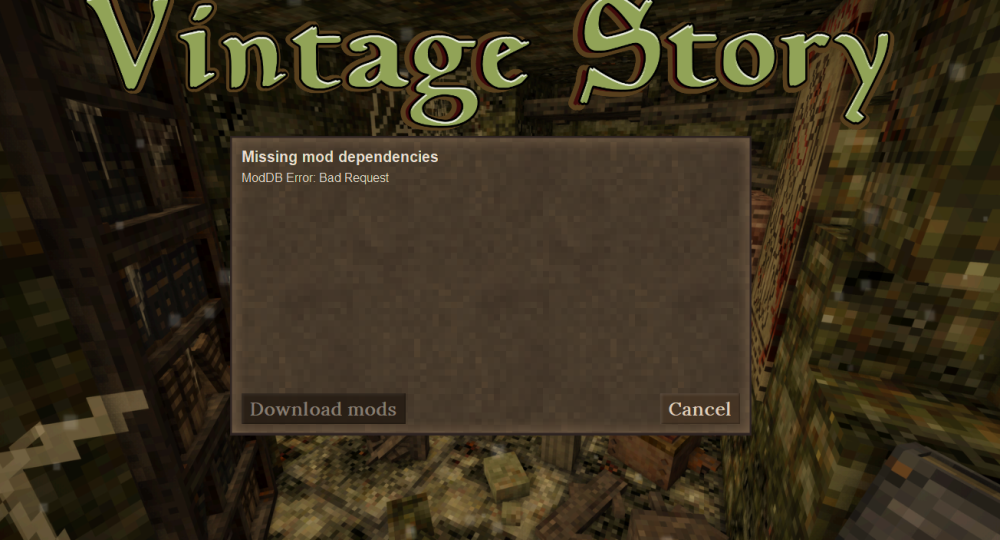
@Shijikori Perfect. I'll make sure future builds leverage 2.0.2. I've already confirmed everything in place works with the new version, so it looks good. For anyone waiting on 1.22.0-rc.*, I'm sourcing your opinion. Currently, I'm seeing a pretty consistent failure when you have more than one Mod loaded on the dedicated server. The client gets a bad request error when trying to communicate with ModDB. I've been holding off making the build, due to that error. Would you all like me to build it anyway? NOTE: ALWAYS backup your saves before doing any upgrade. I've seen a few posts of people being burned because of that.
-
Has anyone been able to solve the "Bad Request" error, when connecting to Dedicated Servers that have more than one mod installed? Everything works fine with one Mod, but as soon as you have more, this is what you see.
-
@Shijikori That is a solid recommendation. The standard configuration for the server has RCON only accessible through the WebUI, but calling it out is definitely a valid point. I should also look into updating the process for handling the WebUI to also support using Let's Encrypt, so it will just natively support SSL, and then give them a way to deploy it with their own certs, if that is what is preferred. I've opened Github Issue #65 for implementing a solution that will allow for simple automated support, if they are using anything more than localhost access.
-
@Shijikori Thanks for the heads up! I'll update the version and test. I actually suspect that may have been the cause of a id count error I was running into that ultimately had me change to an async call through the python rcon library. I'll let you know!
-
Wonderful! Glad I could help!
-
@Varusal - I'm glad it helps. It was a huge pain for me when I first started with things, not having a fast way to start with a server. Glad I can play a part to help other with this. In regards to the situation you are working with. I need to confirm one thing. When you go to start the sever back up, does /opt/vintagestory still have the original contents from when you first started and were having the errors. The reason I ask is that if it does, then you are having a problem because the configuration already has the settings in place. If the serverconfig.json file already exists, then it doesn't change anything in place. I do this, to ensure that your configuration doesn't get inadvertently overwritten. You can do a one time run with the environment variable FORCE_REGENERATE_CONFIG set to true which will force it to generate the configuration again, using your updated settings.
-
I appreciate your interest and what you've started. Anything that makes these games easier for people is a really good thing, in my opinion. I'll plan to continue working with developing this image and pipeline. It was originally primarily for myself, but with so many people who had been struggling with the server and asking about a Docker container, I decided to make it available for everyone and source ideas on improvements from those using it. As you continue working on those implementation, I would suggest creating a thread specifically for it. "Vintage Story Dedicated Server CasaOS Appstore" for example. Primarily because I won't do support on tooling and installs developed by someone else. Have a good one!
-
The newest version of the image that was just released resolves this issue. You can just set VS_CFG_ENFORCE_WHITELIST to true and it will take care of it. I also updated the Server Config wiki entry, to clarify one does nothing and the other actually sets it. Sorry you were hit by this gap of information as well. It was definitely a headache.
-
@Josh Oxborrow - This looks like you are trying to start up the server manually inside of the container? I'm asking because the questions about commands are all about actions that are managed entirely within the container and don't require user interaction. Can you clarify the steps you are following for getting things running?
-
The new image and latest tag have been published. It has some improvements and features added to it. The main post has been updated with details, but a summary of changes are below. Summary of Changes (v0.0.28 → v0.0.30) Feature Changes Automated Mod Installation Automatic installation and configuration of Vintage-RCON mod Enabled via VS_RCON_ENABLED environment variable (Default: true) Built-in RCon Web Client for remote console access Single-user authentication support OAuth integration (Google, GitHub, Facebook, Apple) Fixed whitelist enforcement feature Replaced VS_CFG_ONLY_WHITELISTED with VS_CFG_ENFORCE_WHITELIST New Environment Variables RCon Configuration: VS_INSTALL_RCON - Enable/disable RCon mod installation VS_RCON_PASSWORD - RCon authentication password VS_RCON_WEB_PORT - Web client port (default: 8080) VS_RCON_WEB_SECRET - JWT secret key for web client VS_RCON_WEB_USERNAME - Traditional login username VS_RCON_WEB_PASSWORD - Traditional login password OAuth Configuration: VS_RCON_WEB_OAUTH_ENABLED - Enable OAuth authentication VS_RCON_WEB_OAUTH_EMAILS - Comma-separated authorized email list VS_RCON_WEB_OAUTH_GOOGLE_* - Google OAuth credentials VS_RCON_WEB_OAUTH_FACEBOOK_* - Facebook OAuth credentials VS_RCON_WEB_OAUTH_GITHUB_* - GitHub OAuth credentials VS_RCON_WEB_OAUTH_APPLE_* - Apple OAuth credentials Updated Variables: VS_CFG_ENFORCE_WHITELIST - Replaces VS_CFG_ONLY_WHITELISTED
-
I'm in the process of final testing for the new release. Once that is done, I'll be updating the documentation to make sure it reflects the current state. Hope everyone is having a good weekend.
-
I'm almost done with the new image. Taking the advice, I have incorporated RCon, but I've also added a number of other features to make life running the server less painful, which includes a packaged RCon Web Client. I hope to have everything finished, tested and ready this week.
-
@mohmaniac, Thank you for the note. Also @Fat_Lizardman, thank you as well. I'm going to look into making the adjustments to address the whitelisting (I ran into that as well, but forgot about it since I just manually modified the config file after provisioning.) I'll look into the RCon mod, and what adjustments need to happen for fixing whitelisting management. If someone was willing to open Github Issues for each item on the Repository, that would be really helpful! I'm going to get 1.22.0-pre.1 available for those who want to test against it as well.
-
Just came through to this thread, and wanted to follow up on the comment about helping with the code and keeping things moving forward. I'm already working on other mods for my group, and I consider this mod one of the most important, in a lot of ways. I would absolutely love to help with it. Unfortunately, without it being posted with licensing as open sourced, it can't be classified as open source and puts anyone trying to modify or update, then release the mod in a legal bad place. Additionally, since the code is not published, even offering bugfixes is impossible. It would have to be rewritten from scratch.
-
Hey there! Can you paste the exact command you are using? And the docker-compose.yaml file, if you are using it.