
mard
-
Posts
35 -
Joined
-
Last visited
-
Days Won
1
Content Type
Profiles
Forums
Blogs
News
Store
Everything posted by mard
-
I don't know what to say. I never had any problems with virtual keyboard in the gaming mode before. An USB connected keyboard might help to log in into the game. Other than that, I have no comment as of now. Many users experience improvement if they add --env=mesa_glthread=false to their launch parameters - but your mileage may vary. I'll try to address this issue in the future, if possible - but as of now I have some other priorities.
-
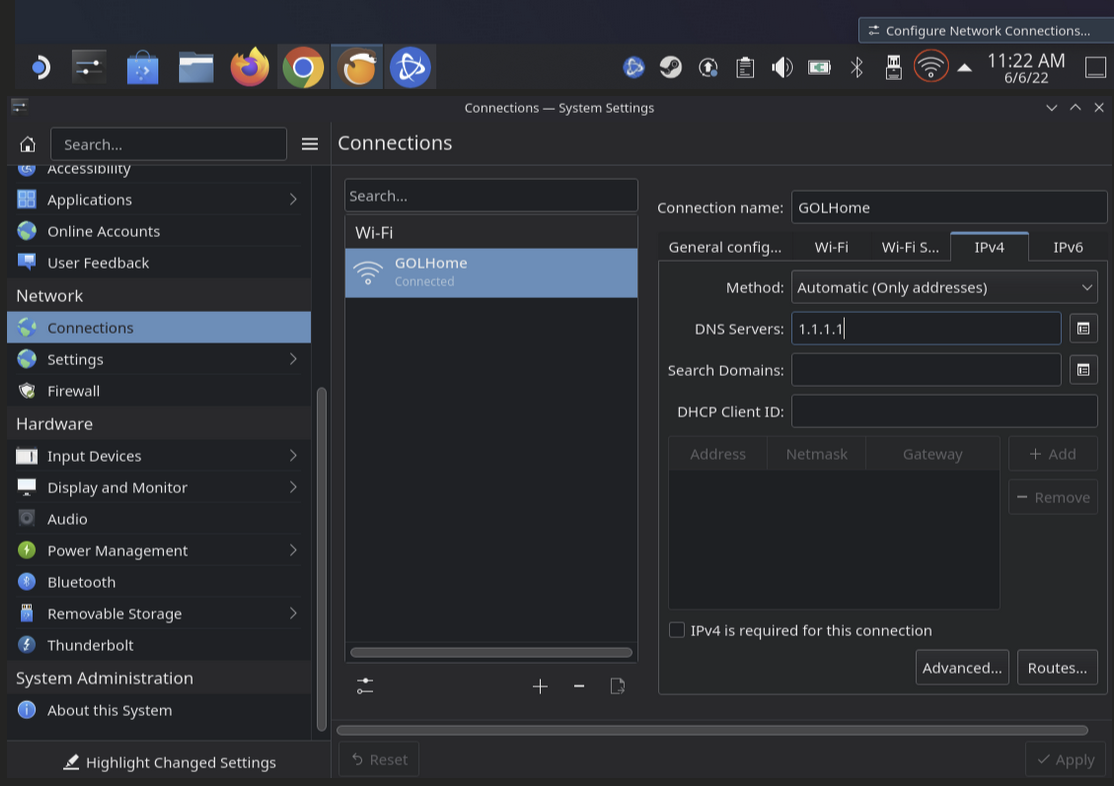
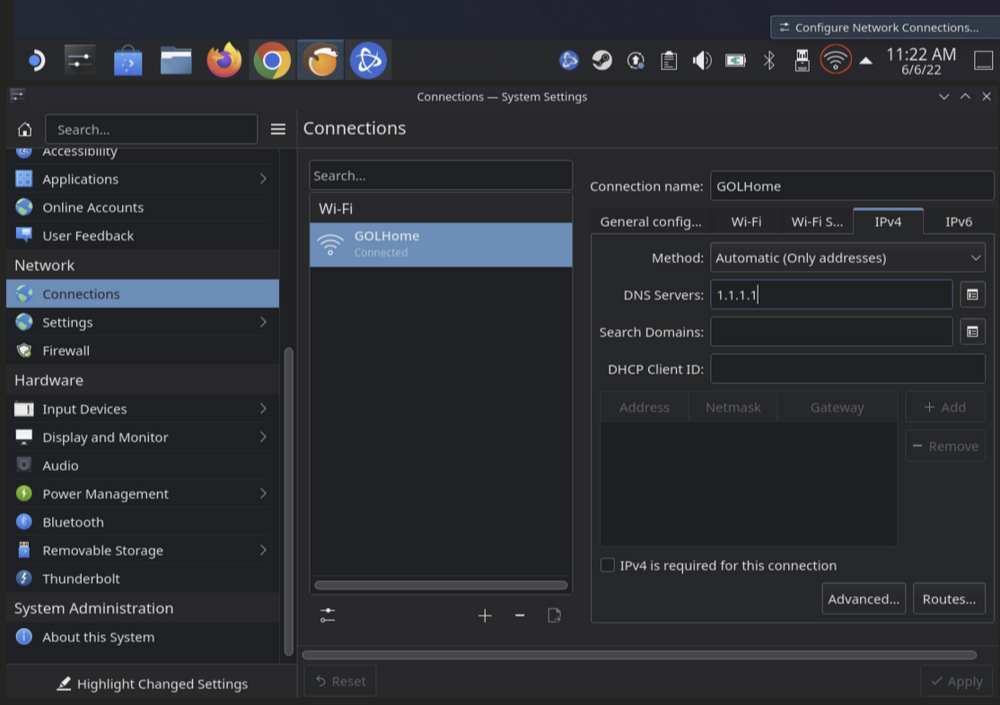
I understand. I wasn't been able to reproduce this problem on my end, however I think I have a clue. Couldn't resolve hostname error indicates that the name resolution server in your network haven't been able to return the IP address pointing to the server hosting game files. There could be multiple reasons for that - a temporary domain misconfiguration or content blocking policy in your network. If the problem persists and you still are not able to install the game in your home, you will need to change the the DNS server manually (image credit GOL). Among most popular public DNS are CloudFlare's 1.1.1.1, Google's 8.8.8.8 or Quad9 9.9.9.9. Any of these should work unless you live in a country that blocks these. If the game still refuses to install with the same error, you'll probably need to set up a VPN connection to make sure nothing in your network interferes with the domain name resolution.
-
@Mr Singularity Thank you for your report. Well, you're not alone! It means content delivery network is unreachable, because Anego unexpectedly changed some URLs in the backend. The new URL is https://cdn.vintagestory.at/gamefiles/**** (notice the change from gamesfiles to gamefiles) Don't worry about it, this issue should be resolved in a day or two. Edit: @Mr Singularity Ok sorry, but the repo says it uses gamefiles now and it should be resolved correctly. Did you at least refresh your repository database? Thank you. I'll update the OP in the coming days.
-
Thank you, I really appreciate it. I can give you a hint regarding automatic sync for worlds: Decky (a community-made extension to Steam Deck's gaming mode) has a plugin for managing a piece of software called Syncthing (open source peer-to-peer file synchronization, which requires Syncthing GTK flatpak to be installed and configured in Desktop Mode). If I ever needed a way to synchronize gigabytes of singleplayer worlds between two online machines, this is what I would use. However, it's just easier (and more convenient) for me to just host a private dedicated server, so I can't say anything about the Decky/Syncthing setup because it never really was my use case. But if you manage to establish a convenient save sync setup sometime in the future, feel free to describe your experience and I'll link it in the OP. Good luck!
-
The performance greatly improved after the VS codebase was migrated .NET 7 and some later SteamOS updates to itself. Deck comes with 16 GB of shared RAM/VRAM memory. It's way more than enough for the base game and will definitely handle a bunch of mods. But I wouldn't really expect it to run an internal server with hundreds of mods installed. You can play heavily modded multiplayer servers rather fine, though. You've probably noticed by now that desktop mode has its own mapping for the Deck controls. For example, left stick is mapped to arrow keys, but in VS you need WASD keys to move around. That's exactly the thing that makes you immobile because arrow keys do nothing in VS. I was under impression that launching the game in Desktop mode from Steam would apply the WASD mapping set in the Gaming mode, but that's apparently not the case. That's why I recommend playing in Gaming mode if you're not using external mouse and keyboard.
-
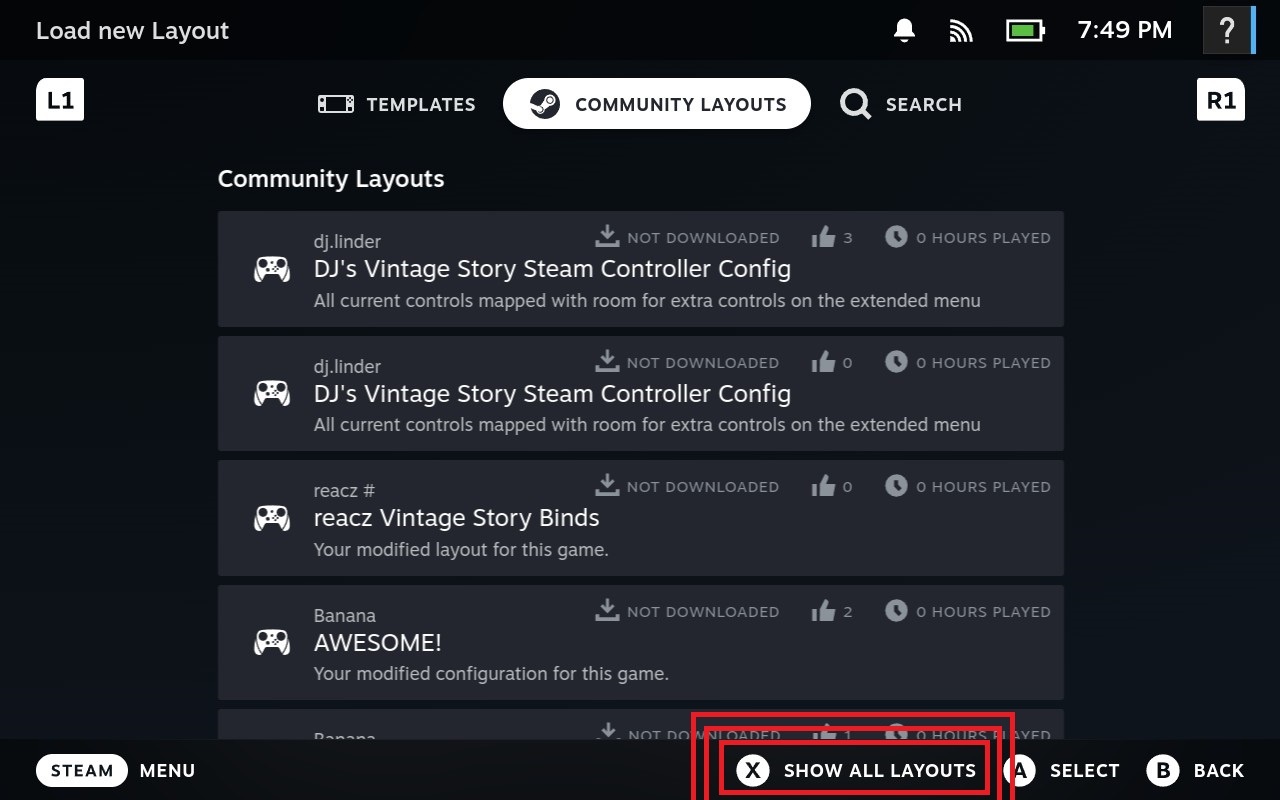
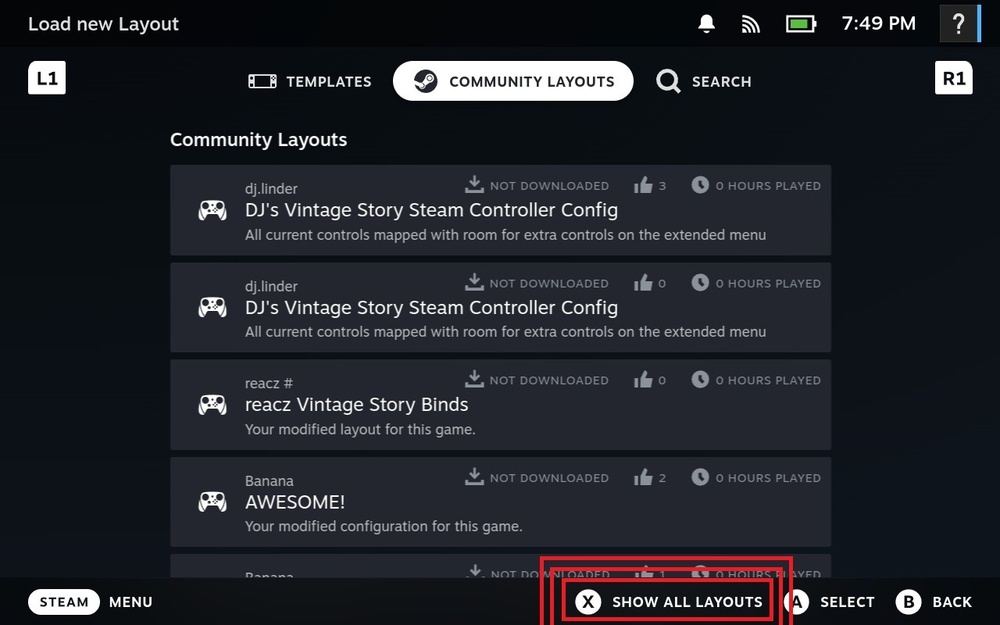
Thank you for your comment and valuable feedback. VS was amongst the first things I installed on my Deck as well. Launching it mostly from the gaming mode I never encountered major problems, but over the years I was able to identify some edge cases where it might break. Good job finding the GLThread hack, it was required previously but during my last audit I found out it's not needed anymore so I removed it from the setup section. As far as I know, virtual keyboard went through some overhauls since the original Steam Deck release. One thing have been common for its every iteration - invoking the virtual keyboard always have been rather buggy and unreliable for me. What usually helps is a reboot straight into the gaming mode, only then I can invoke the keyboard with STEAM+X reliably. Just to say, there's quite a difference between a big picture mode in Desktop Mode and so called Gaming Mode, which works completely outside the built-in desktop environment (KDE Plasma). While I found Vintage Story to be playable in Desktop Mode with physical keyboard and mouse, for built in controls I can always recommend logging out into the Gaming Mode first and foremost. Maybe I'll pay some proper attention to Desktop Mode in my spare time. Desktop Mode was never my focus during my testing, and when it was, I always had it docked with external keyboard and mouse already connected so I had not much exposure to issues with virtual keyboard. Show all layouts option only shows up only if you navigate to it and you don't any item focused on the list below. I can add this disclaimer to the caption that is already existing, all with emboldened red text already present there.
-
The layout was made in April 2022, I asked the author to reupdate/reupload. Make sure that: 1. The non-Steam game name is exactly Vintage Story because the layout was made exactly for this game 2. When navigating to Community Layouts tab on Steam Deck, notice the option Show All Layouts on the bottom panel, enable it (make sure the Community Layouts tab is highlighted to see the option) When all else fails, you can access this URI on desktop mode: steam://controllerconfig/2485963017/3246456598 To invoke it, you can try a web browser, but the best way is to go to desktop mode, open Konsole app and type xdo-open steam://controllerconfig/2485963017/3246456598 The Steam window should open up and you should now be able to apply the layout. I'll update the OP with information above.
-
It's a bit off-topic, but I think it needs to be addressed. Recently, I've noticed that some users who have difficulty with something turn to this thread asking for help, then delete their posts after they find a solution. Instead of deleting the post, you can simply edit it and explain what you did wrong and how you solved it. It can be helpful for others, as well as for me, because I could use your input to improve the guide. I've been a Steam and Linux user for around one and a half decades. Some things are obvious to me, but not so much for others. I did my best to convey all the information as clearly as possible, but if you struggle with something, please let me know so I can explain things a bit better.
-
Rebindable mouse buttons are a great addition for accessibility. However, I see there's something missing here. The game uses something else on a mouse that's not rebindable: mouse scroll for cycling hotbar items. As far as I'm aware, there is no way to rebind a button to select next or previous item on a hotbar. I would greatly appreciate introducing a binding to select next/prev item on hotbar. Creating a new set of controls for prev/next hotbar cycling and binding it to PgUp/PgDn by default (In addition to already existing mouse scroll) would be also a very much welcome solution. This will hopefully make life for those who configure controllers to work with this game a whole lot easier, because binding to mouse events is often a hit or miss, especially on some more exotic setups. Steam Deck for example requires a nasty workaround, because mouse scroll events are detected twice instead of once for some reason, and a special template was required to cycle through 0-9 numbers on a keyboard. All because a binding for next/prev item doesn't exist.
-
That's a good observation. This is because the test artifacts from continous integration (GitHub's flathubbot) have a limited timespan and are deleted after a certain period of time, hence the 404 Not Found error. They are meant to be used to test upcoming versions, not historical ones. If you want to downgrade to any previous version that was already published on flathub, Just follow the Downgrading section of the guide in the original post. I have further clarified it to avoid any confusion if you have a test version already installed in place. Just make sure that the commit id/hash is correct, otherwise you will encounter 404 errors as well.
-
I never noticed any problems with the virtual keyboard in the regular Gaming Mode, but in the Desktop Mode it was always very buggy and I always have some kind of problems with it. It's enough for getting things done, but it's hit or miss when it comes to prolonged usage. As a workaround, you can connect a Bluetooth keyboard, or a regular USB keyboard using an USB-C hub or USB-A to USB-C adapter. Until then, fingers crossed that the virtual keyboard problems get resolved soon.
-
I'm so happy that the iconic TerraFirmaCraft feature I missed for so long - cave-ins and support beams - finally made their way into the Vintage Story. Mining will now be as thrilling as ever!
-
Vintage Story 1.18.8 Flatpak has been published on Flathub and is available to update through the Discover app. It was a major change for the package, as it now utilizes the new .NET 7 instead of the dated Mono runtime. Dropping .NET Framework in favor of a much newer .NET (Core) brings noticeable performance improvements in some areas. Vintage Story now loads noticeably faster on Steam Deck and also shuts down properly. However, as is often the case with major upgrades like these, there could be some new problems, like this one. Some of these issues might be specific to the Steam Deck (Steam + Flatpak) setup. If you suspect so, please provide feedback below in this thread. In case of any problems, first see the original post, which I always try to keep up to date with the new information. Pay special attention to launch options and graphics settings parts, in my experience these are most common points of failure for players trying to run the game on Steam Deck.
-

Linux Beginner guide - mesa_glthread. Boost your performance today!
mard replied to BigBadBeef's topic in Guides
But the server doesn't even render the game with OpenGL. This will have absolutely no effect. -
I'm super glad you were to figure it all out! It's very helpful so I added a necessary disclaimer in the original post so others won't miss it. Yes, the VS flatpak should handle all the mods now, it's shipped with complete Mono runtime which wasn't the case a few months before and many mods crashed the game. Just as a reminder - if you run the game through with Steam, consider adding the --env=LD_PRELOAD= parameter. It will invalidate the additional binary injected by Steam that is recognized by Vintage Story as a mod and in some situations it could interfere with the mod loading process, especially when joining multiplayer games.
-
I'm very sorry to hear this. As of SteamOS 3.4.8 and VS 1.18.6 I can't personally replicate the issue. The VS flatpak loads and runs all fine for me, in singleplayer, multiplayer, modded and vanilla, with both mesa_glthread set to true or false, with default sandbox permissions for the Flatpak. Also, shader precaching is enabled in Steam. I use the following launch options: run --env=mesa_glthread=false --env=LC_ALL= --env=LD_PRELOAD= --branch=stable --arch=x86_64 --command=vintagestory at.vintagestory.VintageStory Apart from that, I don't see how my environment could radically differ from others. My OS is not radically altered in any way, but I indeed have tons of other flatpaks installed (Heroic Launcher, GZDoom, etc.) but it is not clear to me how they could cause any interference. I also have old freedesktop 21 flatpak dependencies deleted. I promised some time ago to wipe my deck clean and investigate the subject to the best of my ability. Unfortunately life got in the way and I wasn't able to find enough time and peace to back up my device. Maybe soon... This thread have been quiet for a while. If you find any clues or solutions, please let me know.
-
Thank you very much for all your input. I'm facing the classic case of "works on my machine". Everything seems to be in order either with mesa_glthread flag enabled or disabled, I also never used Beta branch of SteamOS etc. I'll need a fresh Steam OS installation on my Steam Deck to troubleshoot. Maybe if I'll have some more time later down this week, I'll backup my Steam Deck data and try to follow the guide step by step to see what can be done to fix the issue.
-
Mesa upgrade came from org.freedesktop.Platform upgrade in Vintage Story flatpak, beginning from 1.18.2 onwards. But GL threading was not enabled explicitly in this flatpak for sure. If it's really enabled, it must be something that came with Mesa's default configuration, which is proven to work on most configurations but sometimes leads to weird regressions.
-
Hey, you're welcome. I'm happy you were able to fix the problem! But I'm sorry you had to wipe your Deck clean to figure it out. I'm left with more questions than answers. I have been under impression that Mesa OpenGL threading is disabled by default on Steam Deck. I confirmed this not too long ago, by passing mesa_glthread=true to Vintage Story. It behaved in a noticeably different way, only then I was able to experience weird resolution glitches. But now, I'm having second thoughts. Your case suggests that Mesa GL threading is actually enabled somewhere, because turning it off explicitly with mesa_glthread=false fixed the problem. So it must've been enabled recently, but then why I can't reproduce the problem by turning it on manually like in your case? BTW, are you using stable branch of SteamOS like me, or enrolled into Beta? I don't know what to think of this. Flatpak's Mesa package states clearly which applications are run with GL threading by default. It's defined in /var/lib/flatpak/runtime/org.freedesktop.Platform.GL.default/x86_64/22.08/active/files/share/drirc.d/00-mesa-defaults.conf. There's also this SteamOS native file in /usr/share/drirc.d/00-mesa-defaults.conf that looks mostly the same. In any case, I couldn't find Mono in either of them. For time being, I think it'd be the best to advice users to explicitly set --env=mesa_glthread=false in case of encountering weird issues.
-
Interesting. I'm running Vintage Story 1.8.5 on latest stable SteamOS 3.4.8, all Flatpak packages updated, I can't reproduce this issue. I am using --env=LC_ALL= --env=LD_PRELOAD= --branch=stable in launch parameters. I can navigate the menus just fine, enter the game, exit, mouse is fully functional. I wish I could be able to troubleshoot it, I'd have something to work with. If I was facing the problem you described, I'd try to do the following: Make sure that all Flatpaks are up to date in Discover. Add --env=LD_PRELOAD= to game's launch parameters as described few posts above. This will force Steam not to load some its own libraries that interfere with the program in some way. I think it's related to Steam overlay, which is not used outside desktop mode if I understand it correctly. Set mesa_glthread to false (if set previously with flatseal), or force it anyway by adding --env=mesa_glthread=false to game's launch parameters. mesa_glthread offers some substantial performance gains, but in my experience it leads to some weird problems. Rename/move/remove Vintage Story client settings file, $HOME/.var/app/at.vintagestory.VintageStory/config/VintagestoryData/clientsettings.json Make sure that the controller profile bindings in Steam are in order and not modified in some unpredictable way Try editing/adding --env=LC_ALL= or --env=LC_ALL=en_US.UTF-8 to launch parameters... It shouldn't make a difference, but who the heck knows, I had enough weird locale-related problems in the past. I'm grasping at straws at this point, but tools such as Decky may interfere with the game... If you use it, try disabling it temporarily. Let me know if any of these help with your issue. If not, we'll need to dig deeper somehow, but I'm at a loss how to troubleshoot it.
-
Proton... Could you clarify, are you using Flatpak version as described in OP, or Windows version run with Proton? Flatpak version doesn't use Proton whatsoever, it relies on Linux build that utilizes Linux Mono runtime. Windows build of Vintage Story, used with Proton on Linux is known to suffer with some weird mouse problems. It has been previously reported: Steam Deck proton no mouselook · Issue #2632 · anegostudios/VintageStory-Issues · GitHub. Flatpak version doesn't suffer from these problems - at least according to my personal experience.
-
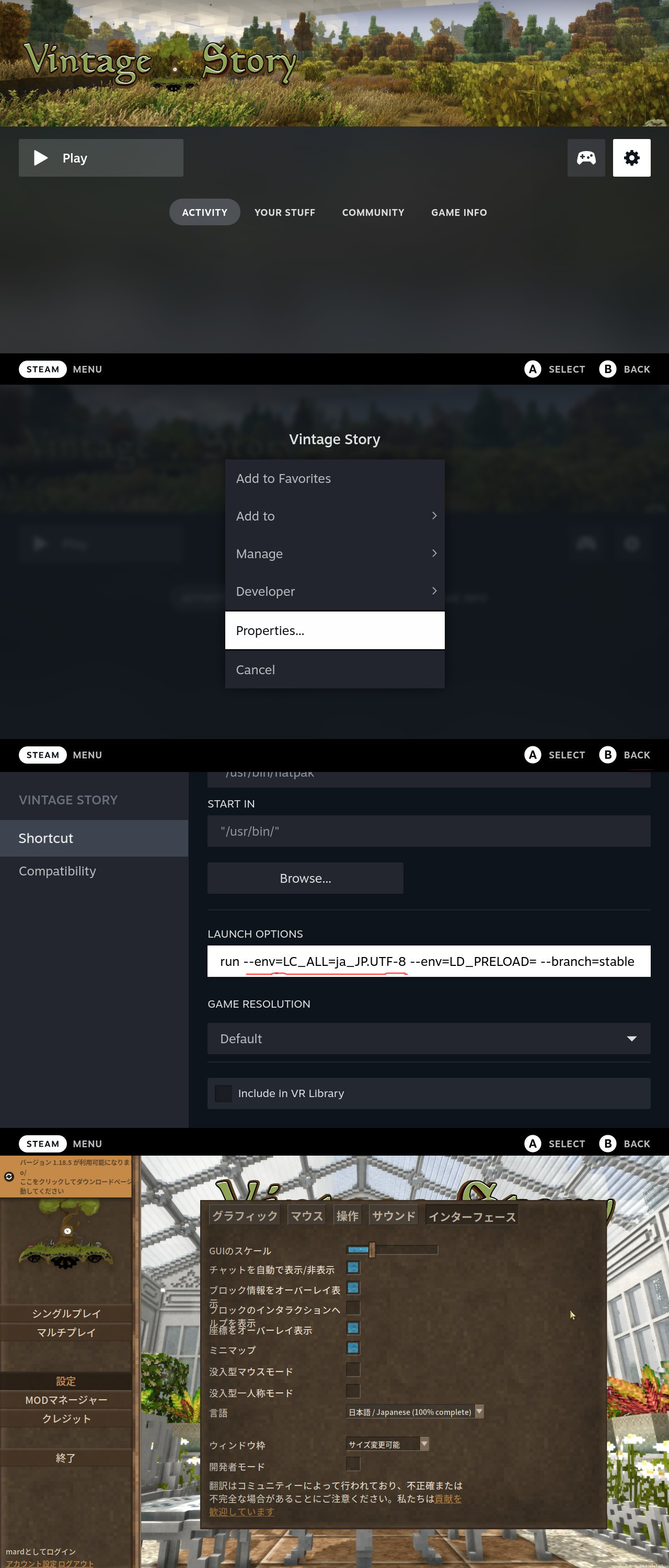
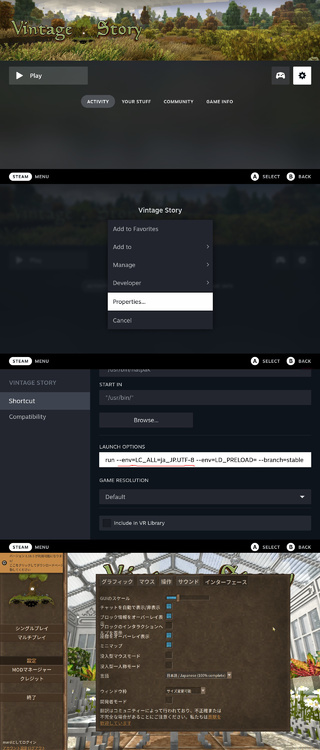
For Japanese , please use --env=LC_ALL=ja_JP.UTF-8 For Korean , this should also work: --env=LC_ALL=ko_KR.UTF-8 Here's the proof it works: For more information, please see: https://github.com/ValveSoftware/SteamOS/issues/794 Have fun! I also updated OP.
-
Linux Beginner guide - mesa_glthread. Boost your performance today!
mard replied to BigBadBeef's topic in Guides
I can't resize or move the game window when it's launched with mesa_glthread=true. The game window turns black and hangs, process requires SIGKILL. Window size must be set manually in config file. The game itself seems playable though. Running SteamOS 3.4.6 on Steam Deck. -
Important update regarding joining modded servers I've noticed that some servers still fail to join, when the game is run using Steam as a non-steam game (either through desktop Steam, or SteamOS gaming mode etc.). This is because Steam is overriding LD_PRELOAD environmental variable on game launch. Steam sets LD_PRELOAD containing a path to a Linux .so library, related to Steam overlay. I suspect that this confuses Vintage Story, it tries to interpret the .so library as a mod and/or .NET assembly. However, I don't know why it affects only some servers, not all of them. Anyway, I was able to workaround this, by adding the following parameter to the launch parameters. This will ensure that LD_PRELOAD set by Steam is reset: --env=LD_PRELOAD= The full line should look like this: run --env=LD_PRELOAD= --branch=stable --arch=x86_64 --command=vintagestory at.vintagestory.VintageStory I will add this information to OP.
-
Today I bring amazing news for Flatpak users, but especially Steam Deck owners. All my changes were finally approved by the maintainer and the updated Vintage Story flatpak package is available for update from the Discover app. Beginning with this v1.18.1 release, problems related to missing mappings and assemblies upon joining modded games are now fixed! Test it out on modded servers, feel free to mod your singleplayer games too. The update also comes with newer graphic libraries, which should come with free performance improvements, especially on Steam Deck hardware. If you update, remember to switch back to --branch=stable in game's properties, if you made the change i mentioned in this post! Enjoy!