Brady_The
-
Posts
750 -
Joined
-
Last visited
-
Days Won
7
Content Type
Profiles
Forums
Blogs
News
Store
Everything posted by Brady_The
-

Alter Drifter drops
Brady_The replied to Micah Holmes's topic in Mod Development Questions/Troubleshooting
You could do it in such a manner, however, it would have a huge downside. If you place the drifter file in "yourmod/assets/game/entities/lore" you would overwrite the Vanilla drifter. If the developers should ever decide to change the drifter, players using your mod would never experience those changes because the original file is overwritten. This could also cause problems with other mods modifying the drifter file. You want to patch the original file instead: https://wiki.vintagestory.at/index.php/Modding:JSON_Patching This way the original file is not replaced, but modified only in the areas you chose to address. You could utilise the ModMaker, which you can find in the installation directory, to create patches for you based on edited Vanilla files. -
According to the comments this mod doesn't work any more. I wouldn't count on an update any time soon: https://mods.vintagestory.at/reignited#cmt-22612
- 1 reply
-
- 1
-

-
The scrambled eggs recipe works for me. Start a completely mod-free test world, switch to creative and test again. "/giveblock firepit-cold" lets you skip the firepit building part. If it works there, you have conformation that a non-cooking mod is apparently messing with cooking.
-
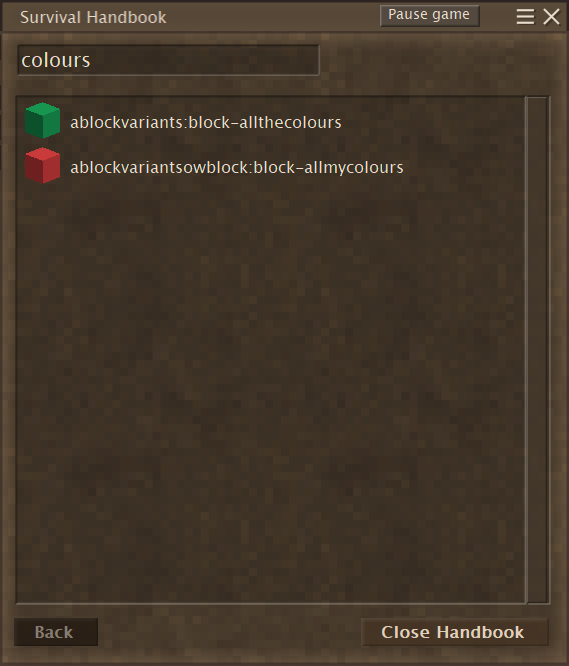
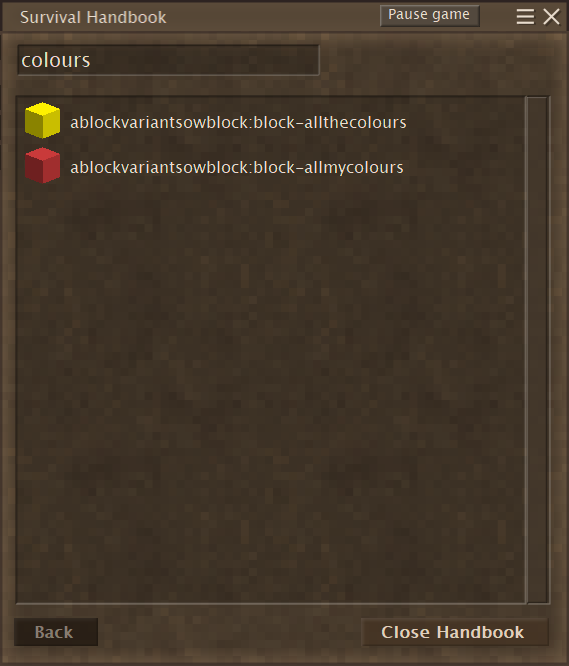
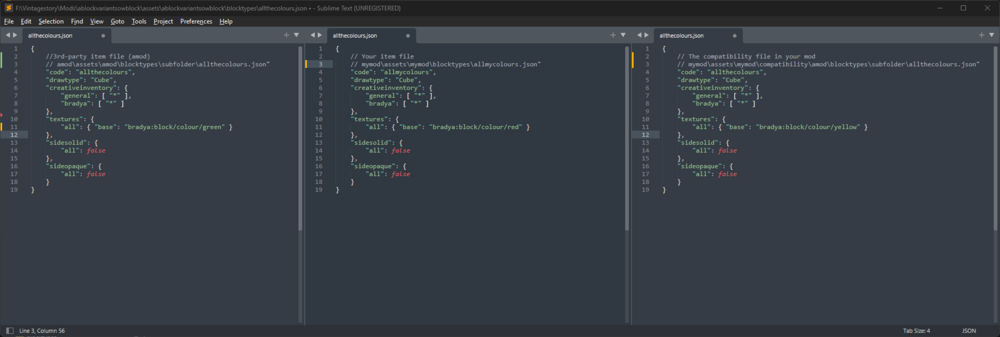
That's Compatibility Lib's moment to shine. I am currently rewriting the article, because it is a bit archaic. Here's a sneak preview: https://wiki.vintagestory.at/BradyThe/Sandbox (It's still a work in progress, but hopefully explains the inner workings of the Comp Lib already a bit better.) How I would go about it depends a bit on the structure of the other mod and your goals. Remove recipes from the other mod: Easy. I would probably use Mod-dependent json-patches (JSON Patches in my rewrite) to disable them. Combine/replace item: Easy - medium: There are one or two solutions to this. Overwrite the 3rd-party item with the Comp Lib. Put all properties of both items (the 3rd-party and yours - combine) into this file. Disable your item via patch. Add recipes into the compatibility folder using the item code of the overwrite. Disable the 3rd-party item with a patch, add any properties of the 3rd-party item you want in yours (combine) to your item by patch. Example setup (I quickly frankensteined an existing test setup, pay no regard to any domain or other inconsistencies): I hope all of this isn't too theoretical only making sense in my mind. If you have any questions, shoot them.
-
Opening clothing models?
Brady_The replied to Micah Holmes's topic in Mod Development Questions/Troubleshooting
You select the backDropShape that has been used in the shape and potentially look into the clothing itemtypes to see what the dev did to the clothing in the background. Edit: I assume the shape you looked at step parented parts of the shapes to the backdrop shape so that the clothing item shows up properly on the player/npcs. Without backdrop present those parts might reset to a default position at 0,0. -
As I expected there's nothing obvious popping up in the logs. Besides the usual lot of warnings and errors due to outdated or broken mods. I would reinstall the game. I see a lot of audio errors. It is very possible that this will fix not the recipe issues, though. If that's the case, employ the binary search meethod I mentioned above to find the culprit.
-
I don't think that it will cause any real damage, but I would still look through my mods and find out which one is causing it, to notify the author about this error.
-
Handbook Game Mech
Brady_The replied to Micah Holmes's topic in Mod Development Questions/Troubleshooting
Oh. To be fair, I haven't done any handbook texts yet, so I only orientated myself on other mod. I should have taken a look at the wiki page... Anyway, you can do it both ways. I don't think that there are any advantages or disadvantages to either of them. You just have to settle for one. { "pageCode": "brady-test", "title": "brady-test-title", "text": "bradya:brady-test-text" } { "game:brady-test-title": "Test title", "brady-test-text": "Test text" } -
It's possibly a mod with a broken recipe file. Some errors can break seemingly random recipes. The link to your mod list doesn't work. Something else could be going on, though. If you want you can share your client-main and server-main log files here. However, those do not necessarily point towards the source of the error. I would suggest to perform a binary search to find the culprit.
-
Handbook Game Mech
Brady_The replied to Micah Holmes's topic in Mod Development Questions/Troubleshooting
The domains shouldn't be needed here. game:mechanici... -
Snowy Versions of Custom Slabs Break
Brady_The replied to jun1per's topic in Mod Development Questions/Troubleshooting
Are you sure you are looking at an up variation of your scrap slab and not a down variation? Hit Ctrl+F3 and look at the block in question. The block info alone is not too precise. For some reason the game will only display one iteration of the block as the asset code, which is not necessarily the correct one. up-snow variations are not created because their top is at the height of a full block. Snow will cumulate on top naturally. The down and cardinal direction versions are special cases, because they are lower or smaller than normal blocks, which would result in strange results, floating snow and the like. Anyway, if you added a scrap texture for the plankslab correctly (/texture/block/wood/planks/scrap.png) you shouldn't get any errors. What do the logs tell you? Texture issues should pop up in client-main, but it's always good to keep an eye on server-main as well.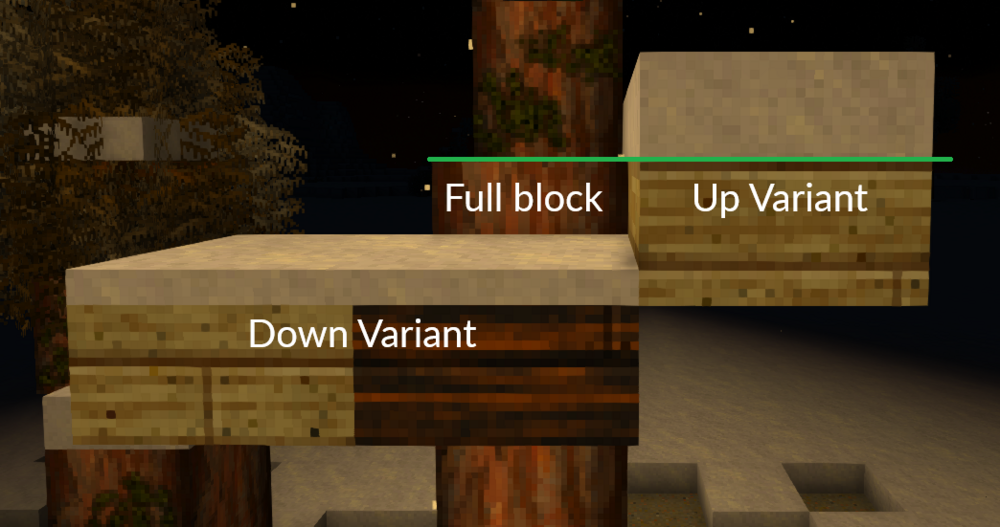
-
Hey Eranderil, welcome to the forum! The game is utilising command blocks for the eidolon fight. https://cdn.imgchest.com/files/e0714a145670.jpg I'd load into a testing world, go into Creative mode, head to the Resonance Archive and have a look for myself. Shift+Right Click should open the Edit interface. Here are some more information: https://wiki.vintagestory.at/Command_block I haven't used those before, so I cannot tell you if that is all you need. It's still a decent place to start, I'd say.
-
clientsettings.json in %AppData%\VintagestoryData
-
The VTML code could be counting towards the character limit per site. I'd do some testing with and without the code and see if there's a difference. There most likely will be. Then I would report my findings on https://github.com/anegostudios/VintageStory-Issues/issues. The devs most likely didn't think that VTML would be that heavily used. That should be an easy enough fix on their end, though.
-
Don't forget to report the crash on the mod page so that the author knows about and can fix it.
-
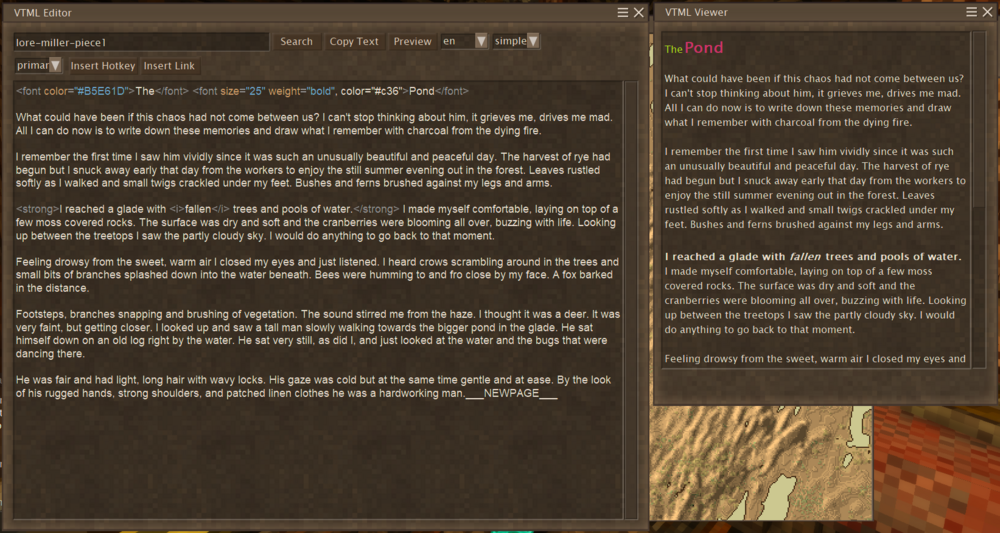
You are most likely running into the problem of escaping certain characters. Quotes in particular. This will break the language string: Because quotes are used in starting and ending a key, but are also used in certain VTML values, which when improperly used will confused the game because it assumes something is ending or starting when it really isn't. "lore-miller-piece1": "<font color="#b5e61d">The</font> <font size="25" weight="bold" color="#c36">Pond</font>[...] This will not: With a backslash you will tell the game to ignore or interpret any following character differently. "lore-miller-piece1": "<font color=\"#b5e61d\">The</font> <font size=\"25\" weight=\"bold\" color=\"#c36\">Pond</font>[...] You might find this mod interesting: https://mods.vintagestory.at/vtmleditor (Edit: The mod works with any language string loaded in the game, so mods should theoretically supported.)
-
Growing mushrooms
Brady_The replied to Micah Holmes's topic in Mod Development Questions/Troubleshooting
That's not the correct code. See skipVariants. You want to look at mushroom-side.json. -
Handbook grouping
Brady_The replied to Micah Holmes's topic in Mod Development Questions/Troubleshooting
That depends what you mean with grouping. You can consolidate blocks/items in the ingredients section in the handbook. "attributes": { "handbook": { "groupBy": ["seashell-{type}-*"] } } You cannot condense the handbook entries too many ways. You can filter out variants of assets, showing for example only north-orientated assets "creativeinventory": { "general": [ "*-north" ] } Technically you can "excludeByType" assets, but that'll remove the handbook entries completely (which doesn't make them uncraftable btw). "attributes": { "handbook": { "excludeByType": { "*-eidolon": true, "*-erel": true, "*-seamonster": true, "*-thunderlord": true } } } But that's about it. -
Welcome to the game and forum, TinyKittenKisses! If you bought this game from Anego directly via Paypal, you should have received a separate mail with the game key. For me it was almost instantaneously. If you bought it from an official reseller I can't help you. I don't know how the process works, but I'd be surprised if it were much different. Maybe you can find it in the purchase section of that resellers website. If you bought it via different payment processors it might take while, depending on how that processor works. Check your spam folder to see if anything was caught. If the key doesn't want to turn up, create a support ticket: https://www.vintagestory.at/support/

-
The pictured stew shouldn't hurt you. My first thought reading your topic was, that you used a poisonous mushroom in the cooking process, but you did not. Any negative health effects should be noted in the description. Are you using any mods that punish you if you eat something too hot? Is your player character allergic to onions or carrots? Jokes aside, from that screenshot alone I cannot tell you why you'd take damage from eating. It might be another mod doing something. I seriously doubt that this is a Vanilla issue. Can you reproduce taking damage when eating from that stew? Do you take damage when eating a stew with completely different ingredients? If you can repeat taking damage, I'd go ahead and utilise a binary search to find out what mod could potentially causing this.
-
There's a mod for that! https://mods.vintagestory.at/show/mod/31839 I haven't played VS in a while, so I haven't had a chance to use this mod yet, so I don't know if the keys are rebindable.
- 1 reply
-
- 2
-
-
crash anytime i look at Rye Bread recipie..
Brady_The replied to DetectiveGrim's topic in Discussion
The crash happens because two recipes contain old block codes. dough.json and candymilk.json have to be fixed. It's pretty easy to do it yourself if you know your way around zip files. Otherwise I'd wait for the mod author to resolve these issues. -
There's a lathe mod available. https://mods.vintagestory.at/woodlathe
-
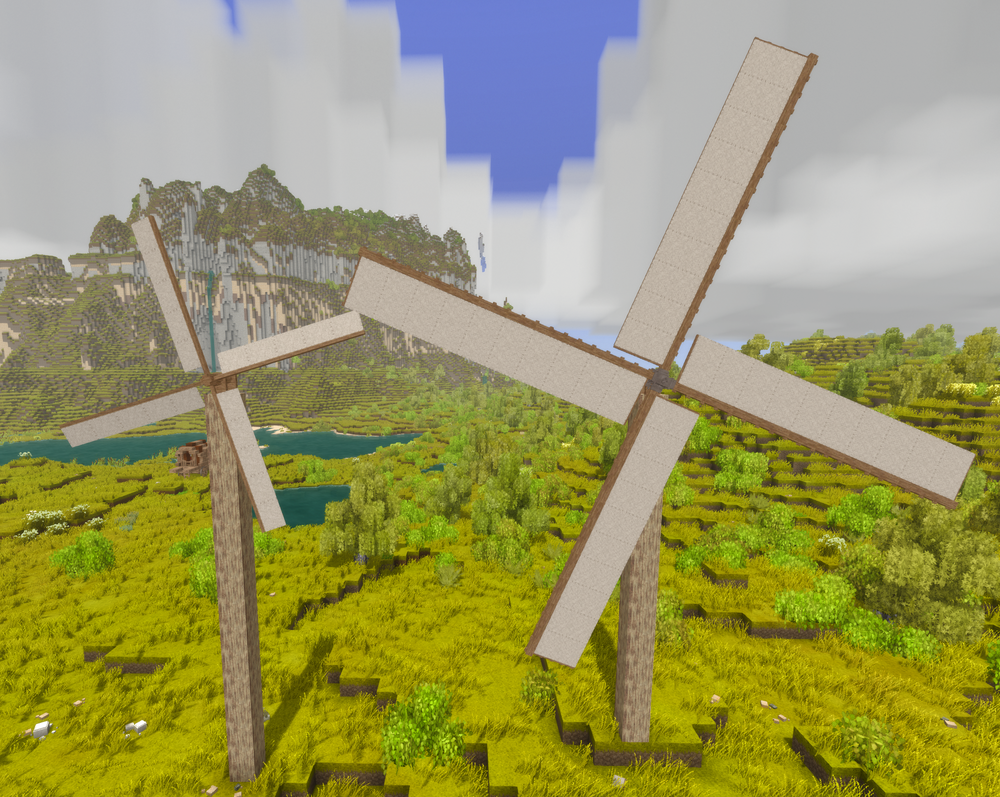
Windmills are tough to get look right. The full sails are too narrow and too short. The building is too massive in contrast to the fragile looking sails. I'd probably half the width of the tower. At least. That's a lot of work, though. I'd probably make a copy of this world, go into creative mode and test around a bit to see what works and what doesn't. With that said, Tyron spoiled some work on the sails on the Discord server:
-
According to the wiki the assets folder should be located at /users/{your username}/Library/Application Support/VintagestoryData. Resources: - https://wiki.vintagestory.at/Modding:Content_Tutorial_Simple_Recipe, - https://wiki.vintagestory.at/Modding:Content_Tutorial_Complex_Grid_Recipes - https://wiki.vintagestory.at/Modding:Content_Tutorial_Further_Recipes - https://wiki.vintagestory.at/index.php?title=Modding:Modinfo (Add the two mods as dependencies to avoid any errors.) - https://wiki.vintagestory.at/index.php?title=Modding:Mod_Packaging Depending on what you want to achieve this process is really quite simple. It would help to know what mods you are talking about, to be able to write an example that is less abstract.