


Brady_The
-
Posts
750 -
Joined
-
Last visited
-
Days Won
7
Content Type
Profiles
Forums
Blogs
News
Store
Everything posted by Brady_The
-
Don't forget to downvote any wrong translations to ensure that your corrections will be added to the game files. What would you suggest? Currently I only see two ways. AI Professional translators proof-reading every line
-
 You are in luck! There's a pretty fresh class tutorial on the wiki. However, both of those traits you mentioned might required some coding. But I don't know too much about classes, so probably your best cause of action after the tutorial would be to compare notes with other popular class mods.
 -
How to restrict certain items from being crafted?
Brady_The replied to Bartermarlin's topic in Questions
Making a mod is the best future-proof solution to this. Technically you could simply delete the recipes from the mod but you would have to do that every time the mod is updated. Or you want to make something craftable and now have to fiddle with restoring files. This tool should make the process much easier: https://mods.vintagestory.at/patchcreatetool What you essentially want to do is to disable the recipes. Open up the recipe files and add an "enabled": false, to the recipe you want to disable. Example: This would disable recipe 1 and 2 but would keep recipe 3 enabled.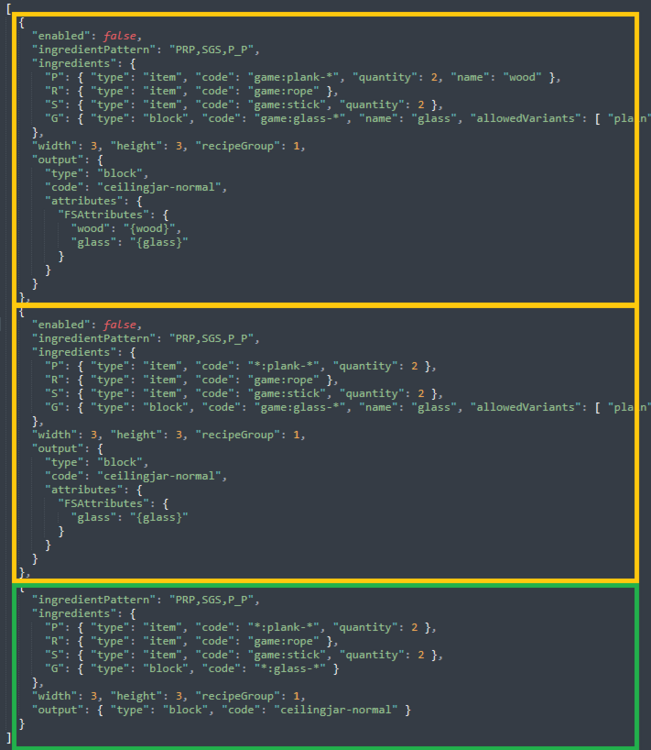
-
If you are on the Discord server, you can ask in the channel I linked above more about how to proceed. All you need to translate is a crowdin account. I do believe that the translation with the most upvotes is added to the game files. So any upvoted wrong translations probably has to be downvoted by you. If you need people do down- or upvote something you can ask for it in the wiki-and-translation channel. The translators in there know the struggle and usually don't mind at all lending a helping hand.
-
VSMC Texture Mismatch
Brady_The replied to TheCrimsonKing96's topic in Mod Development Questions/Troubleshooting
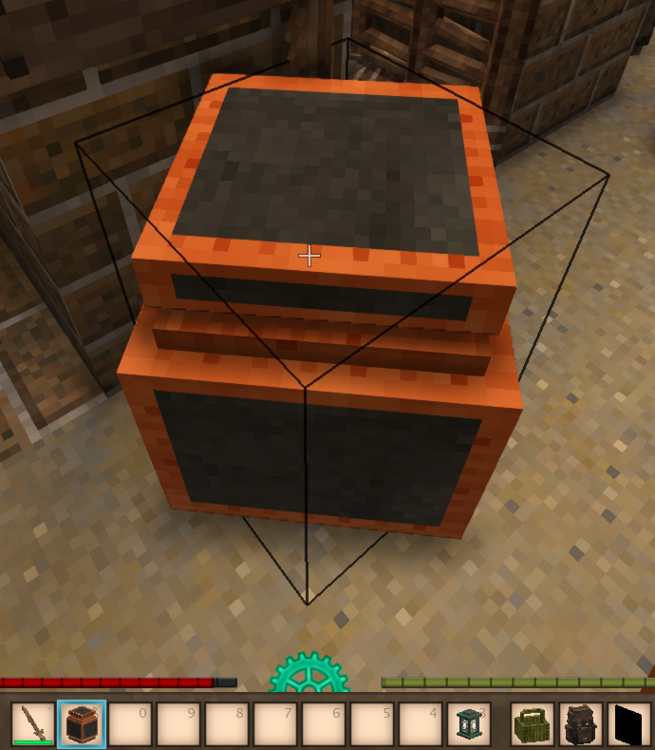
I am starting to understand. (Maybe.) (I am a bit slow...) What I do not understand are the UV mappings in normal-copper.json. I assume you mapped the cubes according to the texture resolution? Or how did you work within the VSMC to get the correct view you presented? Just one example. The element lid in the shape file you provided contains the following uv mapping for the cardinal directions. Those are for the default size of 16x16: "north": { "texture": "#texture", "uv": [ 0.0, 0.0, 5.0, 1.0 ], "autoUv": false }, "east": { "texture": "#texture", "uv": [ 0.0, 0.0, 5.0, 1.0 ], "autoUv": false }, "south": { "texture": "#texture", "uv": [ 0.0, 0.0, 5.0, 1.0 ], "autoUv": false }, "west": { "texture": "#texture", "uv": [ 0.0, 0.0, 5.0, 1.0 ], "autoUv": false }, Now, if you want to to use a texture with the resolution of 32x32 (double the size) those mappings double too: "north": { "texture": "#texture", "uv": [ 0.0, 0.0, 10.0, 2.0 ], "autoUv": false }, "east": { "texture": "#texture", "uv": [ 0.0, 0.0, 10.0, 2.0 ], "autoUv": false }, "south": { "texture": "#texture", "uv": [ 0.0, 0.0, 10.0, 2.0 ], "autoUv": false }, "west": { "texture": "#texture", "uv": [ 0.0, 0.0, 10.0, 2.0 ], "autoUv": false }, The same would apply for 64x64 textures: "north": { "texture": "#texture", "uv": [ 0.0, 0.0, 20.0, 4.0 ], "autoUv": false }, "east": { "texture": "#texture", "uv": [ 0.0, 0.0, 20.0, 4.0 ], "autoUv": false }, "south": { "texture": "#texture", "uv": [ 0.0, 0.0, 20.0, 4.0 ], "autoUv": false }, "west": { "texture": "#texture", "uv": [ 0.0, 0.0, 20.0, 4.0 ], "autoUv": false }, I am not much of a theoretician. I prefer a more hands-on approach, so I'll attach the files I had a go with. These files still probably need some cleaning. As you can see in the hotbar there are some texture issues, which could be related to the texture resolution. I hope I am not completely on the wrong path here. I am not a huge VSMC expert. Nor am I apparently able to understand your problem correctly. normal-copper_32.json normal-copper_64.json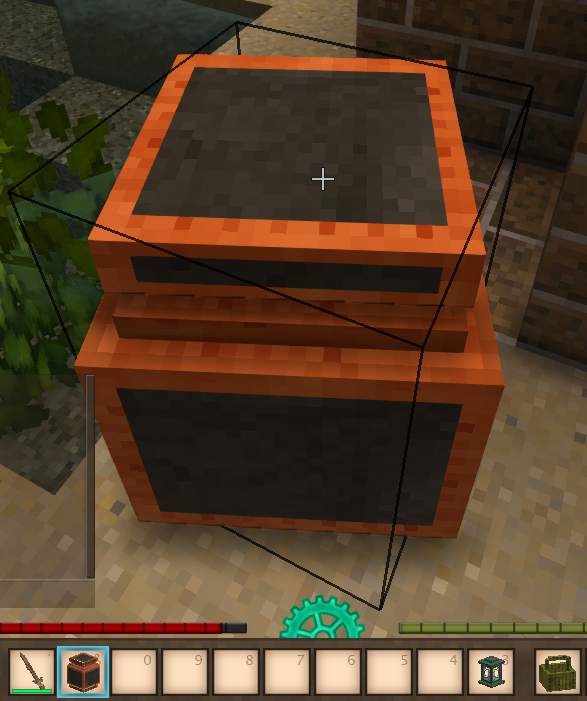
-
Game translation: https://crowdin.com/project/vintage-story-game - you just need an account Wiki translation: https://discord.com/channels/302152934249070593/420476226420080670 - create account and ask Aki for edit permissions
- 1 reply
-
- 1
-

-
Probably your best bet to get attention on this matter would be to talk about it in the discord channel or by creating an issue. Especially the issues like the mentioned elk mistranslation seems to be serious enough to warrant escalating this. AI-supported translations are a problem. Your case is not the first one. All the elk related translations seem to have been "translated" by one guy. Another option would be to fix these things yourself. Everybody can partake in translating. It's a lot of work, but it doesn't have to be done all in one go. Focussing on the worst contenders could be the first move.
-
How to restrict certain items from being crafted?
Brady_The replied to Bartermarlin's topic in Questions
The easiest way would be to ask the mod author to add a config which allows you to enable or disable certain features. That could be a big ask, depending on the authors knowledge or interests. There's the chance that the mod already offers this option. However, that feature would most likely be mentioned on the mod page. The better way would be to create a server tweak mod, which specifically targets those blocks or items you don't want to be crafted. How you go about it, depends entirely on your goals. Do you want to disable the crafting? (Block/item still exists, could be acquired via creative mode/console commands) Do you want the block/item entirely gone? (No handbook entry, etc) -
VSMC Texture Mismatch
Brady_The replied to TheCrimsonKing96's topic in Mod Development Questions/Troubleshooting
I am looking at the most current version of your mod that's available on the ModDB. I assume that you are touching at least partially the files with code, considering that your shape definitions differ from the usual way. Is it possible that something is manipulating textures in code as well? I assume that the texture definitions within the blocktypes have changed as well. Otherwise the overlays could potentially be messing with the in-game appearance. I only downloaded the assets you shared here and everything appears to look like it is supposed to look. -
There's definitely expandedfoods, but this one is beast, changing a lot of things about cooking. You haven't mentioned pies, but this mod might interest you: https://mods.vintagestory.at/theartofpies There's also https://mods.vintagestory.at/sammiches.
-
Snowy Versions of Custom Slabs Break
Brady_The replied to jun1per's topic in Mod Development Questions/Troubleshooting
Your logs don't show anything, mine do neither. Ingame everything looks like it should. It seems that the issue resolved itself. You could connect to the world in which the error appears and place down new slab, see if those are affected as well, but if these error blocks don't appear in any newly created worlds, it is pretty safe to assume that the issue are no longer.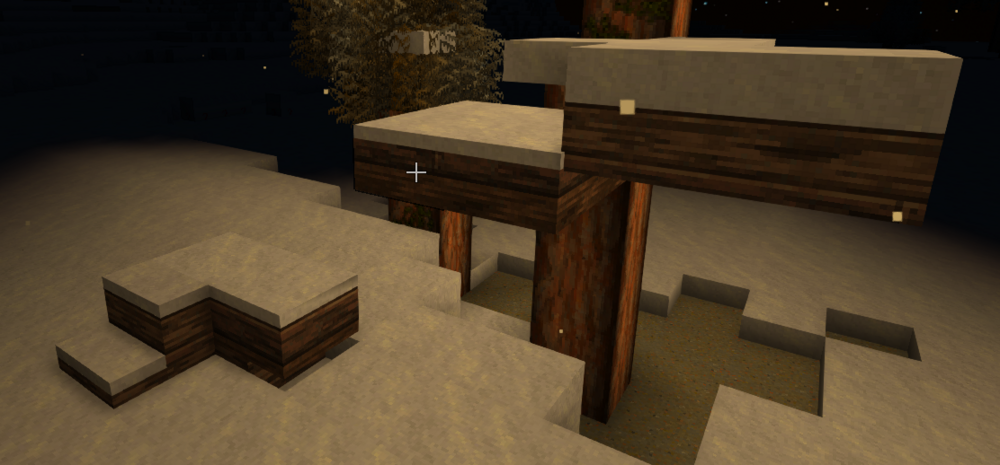
-
Snowy Versions of Custom Slabs Break
Brady_The replied to jun1per's topic in Mod Development Questions/Troubleshooting
If it happens in one world, but not in another one it could be indeed a caching or block registry issue. If that is the case, the issue is most likely restricted to this one (older?) test world. I would go ahead and compare the client-main and server-main logs for both of those worlds. They very likely contain a clue to the reason what the issue is. If you want you could also share your mod here. I could have a look and see if I encounter these problems too. Edit: Did you potentially do some work on the json files for these blocks after you placed some down? If you did, that might explain your issues, because placed blocks do not update automatically. -
That's how you do it! I personally would go ahead and move all patches into the heavyforlonarmor domain. This happened once. It can happen again if somebody else is using ModMaker created patches to modify something you change too. All but the first three of your patches fit the ModMaker naming pattern. Edited https://wiki.vintagestory.at/Modding:JSON_Patching#File_Path_and_Name_Considerations to reflect current implementations.
- 8 replies
-
- 1
-
-
- compatibilty
- mod
- (and 1 more)
-
If I remember correctly bowls and pots should be emptied when thrown into water.
-
Don't mind me, I am just an AI hallucinating things. The ModMaker doesn't do that, but it generates the same file names. So if people use the ModMaker and put patches into the game domain (because that's what you do if you refuse to go through the wiki tutorials to understand the finer details of modding VS) you'll get those results. Hm, I wonder if those domain issues are mentioned anywhere on the wiki. I might have to take a look.
- 8 replies
-
- 1
-

-
- compatibilty
- mod
- (and 1 more)
-
how did I turn on this weird block overlay?
Brady_The replied to Whimsical Fool's topic in Questions
I do believe that this is the build outline for the cementation furnace. You activate it by Shift + Right Click and deactivate it by Right Clicking the stone coffin. -
Well, that solution was surprisingly (and might I add disappointingly) easy. This is btw an interesting side effect of the ModMaker. I can only assume that we will see more of this in the future.
-
I quite like the trim, but now that you mentioned and after another look, removing the canopy or replacing the dark with a lighter wood might already be enough of a change. As it currently stands the (porch) roof acts as a thick, dark border, minimising the size of the ground floor and making the whole issue worse by darkening the whole lower section.
-
I think the house looks pretty great. The first floor is a bit oppressive in size, overpowering the ground floor with its volume. Make the ground floor a bit taller and see how it changes the view.
-
Unfortunately you cannot at this time.
-
Alter Drifter drops
Brady_The replied to Micah Holmes's topic in Mod Development Questions/Troubleshooting
Alright, now we are getting somewhere. Where is the patch file located? It should be in "craftsmanship\assets\craftsmanship\patches". Sub-folders in the patches folder are okay. Also, test it without any extra mods to make sure that it is not some other mod messing with the drifter file. -
Alter Drifter drops
Brady_The replied to Micah Holmes's topic in Mod Development Questions/Troubleshooting
Make sure that you are using the correct asset type and code, and that the asset is available. -
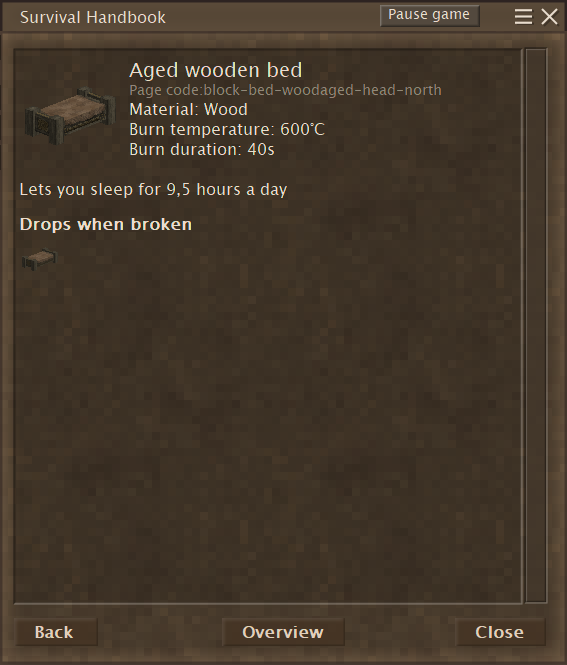
What's most likely missing in your case is the correct command. "/giveitem" is for items. Blocks require the command "/giveblock". The next hurdle would be the correct asset code. The easiest way to obtain those would be via Creative Inventory. However, if you don't have any admin powers, the next best way would be to execute the command ".edi" in chat. This adds among other things, the page code of assets to their handbook pages. This gives you two information. Is it a block or an item. What is the asset code. With those you can now spawn the aged wooden bed (or any other asset). /giveblock bed-woodaged-head-north, followed by the quantity if you need more than one and the target, if you are not giving the bed to yourself. "/help" giveblock" in the ingame chat will help you with any optional parameters.
-
Alter Drifter drops
Brady_The replied to Micah Holmes's topic in Mod Development Questions/Troubleshooting
That looks correct. How did you ascertain that the drop is not working? -
Alter Drifter drops
Brady_The replied to Micah Holmes's topic in Mod Development Questions/Troubleshooting
Drops are a bit different for entities. Those are handled on the server side. So you would have to address "/server/behaviors/9/dropsByType/*-normal/-" if, for example you would want to add drops to the normal drifter. Because you are patching a game file you don't need to add the game domain in front of asset codes.


